
Upgrading. Before you do anything else, read Upgrading to Moodle 2.2 Moodle is designed to upgrade itself from one version to the next.
The procedure is Back up everything. Replace the old version of the code with the new one. Log in to your Moodle site and go to Settings > Site administration > Notifications which will then trigger Moodle to self-update. These steps are explained in more detail below. Sometimes there are specific considerations when upgrading to a particular version.
See this tutorial if you are upgrading Moodle on cpanel. There is also a separate page about upgrading Moodle if you installed it using the Ubuntu/Kubuntu/Debian package manager. When upgrading a Moodle installation you should follow these steps: Before you upgrade your site for real. Site backup. A site backup allows a site administrator to save everything associated with a moodle site.
These backups can be restored to bring a site back to the point in time when the backup was made. Performing regular backups are highly recommended to reduce the amount of lost information in the event of a problem on the site and to speed the overall recovery process. What needs to be backed up? Migration. There may be times when you need to move your Moodle site from one server to another.
For example, moving a Moodle site from shared hosting service's server to a dedicated server. Tip: One common migration mistake is to forget to update the details in the migrated Moodle's config.php file. Migrating a complete Moodle site - method 1 This involves moving a whole site from one server to another. If you are changing the domain/IP address to the new server you need to do these steps: Maintenance mode. Verify Database Schema. If you have been upgrading your Moodle site over several versions, it is possible (likely even) that some differences may have crept in between the database table definitions (the "schema") in your database and the version you would get creating a new empty site.
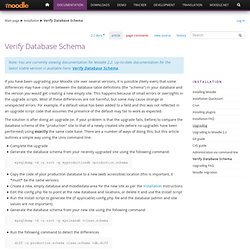
This happens because of small errors or oversights in the upgrade scripts. Most of these differences are not harmful, but some may cause strange or unexpected errors. For example, if a default value has been added to a field and this was not reflected in an upgrade script code that assumes the presence of the default may fail to work as expected. The solution is after doing an upgrade (or, if your problem is that the upgrade fails, before) to compare the database schema of the "production" site to that of a newly created site (where no upgrades have been performed) using exactly the same code base.
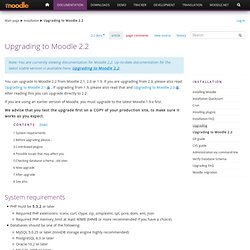
There are a number of ways of doing this, but this article outlines a simple way using the Unix command line. Should I worry? Moodle.org: Download standard packages. Upgrading to Moodle 2.2. You can upgrade to Moodle 2.2 from Moodle 2.1, 2.0 or 1.9.
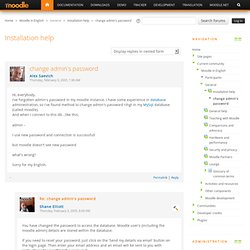
Change admin's password. Hi Raman, Have you seen this discusssion?
Moodle & Storyline - Articulate Storyline Discussions. 9 Ways to Troubleshoot Articulate & LMS Issues. Apr182008 Update: Also check out Troubleshooting LMS Issues.
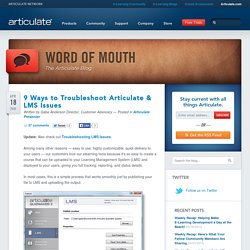
Among many other reasons — easy to use, highly customizable, quick delivery to your users — our customers love our elearning tools because it’s so easy to create a course that can be uploaded to your Learning Management System (LMS) and deployed to your users, giving you full tracking, reporting, and status details. In most cases, this is a simple process that works smoothly just by publishing your file to LMS and uploading the output: However, given the wide array of LMSes on the market and the varying degrees of adhering to or implementing the elearning communication standards that allow your content to talk to your LMS, there are any number of things that can lead to unexpected issues with getting your Articulate-powered content to launch and track as expected in your LMS.
The good news is that with some basic troubleshooting steps, you can usually get to the bottom of the issue. 1. View LMS Basics Prsentation. Support - How to Enable LMS Debug Mode. Disabling "Review Mode" Hi all, I have an issue that's baffling me.
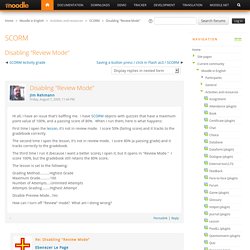
I have SCORM objects with quizzes that have a maximum point value of 100%, and a passing score of 80%. When I run them, here is what happens: First time I open the lesson, it's not in review mode. I score 50% (failing score) and it tracks to the gradebook correctly. The second time I open the lesson, it's not in review mode. The third time I run it (because I want a better score), I open it, but it opens in "Review Mode. " The lesson is set to the following: Grading Method..........Highest GradeMaximum Grade..........100Number of Attempts....Unlimited Attempts Attempts Grading........Highest Attempt Disable Preview Mode...Yes How can I turn off "Review" mode?