
Download Details - Microsoft Download Center - IE App Compat VHD. Download Details - Microsoft Download Center - Windows XP Service Pack 3 - ISO-9660 CD Image File. Download starting... Home - Spoon.net (not free) How to Install Oracle VM VirtualBox and Create a Virtual Machine. Oracle VM VirtualBox is an open source virtualization software that you can install on various x86 systems.
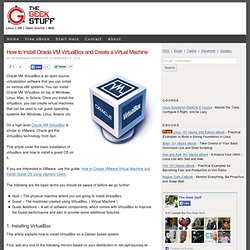
You can install Oracle VM Virtualbox on top of Windows, Linux, Mac, or Solaris. Once you install the virtualbox, you can create virtual machines that can be used to run guest operating systems like Windows, Linux, Solaris, etc. On a high-level Oracle VM VirtualBox is similar to VMware. Oracle got this VirtualBox technology from Sun. This article cover the basic installation of virtualbox and how to install a guest OS on it. The following are the basic terms you should be aware of before we go further: Host – The physical machine where you are going to install VirtualBoxGuest – The machines created using VirtualBox. ( Virtual Machine )Guest Additions – A set of software components, which comes with VirtualBox to improve the Guest performance and also to provide some additional features. 1. This article explains how to install VirtualBox on a Debian based system. 2. Click Finish. How to install VirtualBox Guest Additions - Tutorial.
Updated: December 29, 2008 If you're using VirtualBox as your favorite virtualization product, you may have heard or noticed that virtual machines you install can be boosted with Guest Additions.
When installed, the Guest Additions tools allow your guests to run faster and better, to share mouse and clipboard with the host, to use the Shared folders, and more. All in all, a highly useful ... addition. So we will learn how to use them. Guest Additions are similar to VMware Tools for VMware Server / Workstation. How to Run Windows XP for Free in Windows 8. Official Windows 7 SP1 ISO Image Downloads. VirtualBox. VirtualBox - Ensiwiki. De Ensiwiki.
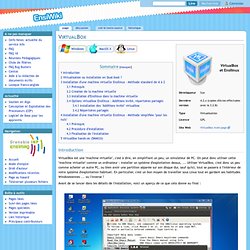
Windows MacOS X Linux Introduction VirtualBox est une "machine virtuelle", c'est à dire, en simplifiant un peu, un simulateur de PC. Avant de se lancer dans les détails de l'installation, voici un aperçu de ce que cela donne au final : Ici, on a un Linux (Ubuntu) qui tourne à l'intérieur d'un Windows. Virtualisation ou Installation en Dual-boot ?
On parle ici de machine virtuelle, ou de virtualisation. Les intérêts de la virtualisation sont (au moins) : On peut utiliser en même temps des applications Windows et des applications Linux (pratique quand on a ses habitudes sous Windows). Mais en contrepartie : Une machine virtuelle est plus lente qu'une vraie installation. Beaucoup d'utilisateurs testent Linux dans une machine virtuelle, mais font une "vraie" installation quand ils commencent à l'utiliser au quotidien. VirtualBox ou la virtualisation facile pour tous : VirtualBox : télécharger une machine virtuelle prête à l'emploi. Pour éviter l'installation complète d'un système d'exploitation, et gagner du temps, vous pourrez trouver sur Sun xVM VirtualBox Virtual Disk Images ou encore sur VirtualBox Images, une cinquantaine de distributions Linux pré-installées, c'est-à-dire directement opérationnelles sitôt chargées dans le gestionnaire de supports virtuels.
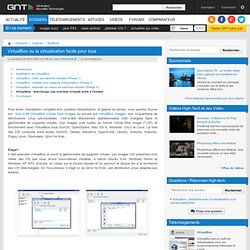
Ces images sont toutes au format Virtual Disk Image (*.VDI) et fonctionnent avec VirtualBox sous SunOS, OpenSolaris, Mac OS X, Windows, OS/2 et Linux. La liste des VDI comporte entre autres CentOS, Debian, Mandriva, OpenSUSE, Ubuntu, Xubuntu, Kubuntu, Puppy Linux, Slackware, Qimo for Kids… Étape1Il faut exécuter VirtualBox et ouvrir le gestionnaire de supports virtuels. Les images VDI présentes sont celles des OS que nous avons nous-mêmes installés, à savoir Ubuntu 9.04, Windows Seven et Windows XP SP3. Ensuite, on clique sur le bouton Ajouter et on parcourt le disque dur à la recherche des VDI téléchargées. VMware Player: Run Windows 8, Chrome OS on a Virtual PC. Windows Virtual PC: Home Page. [howto] Cloudbreak. Cloudbreak is a powerful left surf that breaks over a coral reef, a mile off southwest the island of Tavarua, Fiji.
![[howto] Cloudbreak](http://cdn.pearltrees.com/s/pic/th/cloudbreak-100707081)
Cloudbreak is a cloud agnostic Hadoop as a Service API. Abstracts the provisioning and ease management and monitoring of on-demand clusters. Cloudbreak API documentation. Overview Cloudbreak is a RESTful Hadoop as a Service API. Benefits Secure Supports basic, token based and OAuth2 authentication model. Elastic Using Cloudbreak API you can provision an arbitrary number of Hadoop nodes - the API does the hard work for you, and span up the infrastructure, configure the network and the selected Hadoop components and services without any user interaction.
Scalable As your workload changes, the API allows you to add or remove nodes on the fly. Declarative Hadoop clusters We support declarative Hadoop cluster creation - using blueprints. Flexible You have the option to choose your favourite cloud provider and their different pricing models. How it works? Templates Stacks Blueprints Cluster. Vagrant Tutorial - Brown Fort.