
Essential Eclipse Shortcuts. Essential Shortcuts The list of shortcuts in Eclipse is fairly long yet readily available.
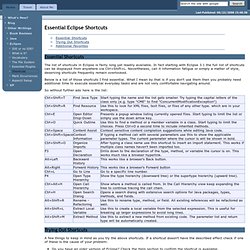
In fact starting with Eclipse 3.1 the full list of shortcuts can be displayed from anywhere via Ctrl+Shift+L. Nevertheless, call it information fatigue or simply a matter of style, deserving shortcuts frequently remain overlooked. Below is a list of those shortcuts I find essential. What I mean by that is if you don't use them then you probably need additional time to execute essential everyday tasks and are not very comfortable navigating around. So without further ado here is the list: Trying Out Shortcuts A few things to keep in mind as you try the above shortcuts. Do you have an older version of Eclipse? Additional Favorites Here are some additional shortcuts, perhaps not essential but still very useful:
Sublime Text 2 Project Bliss. One of the many things that led me to decide that Sublime Text was going to be my text editor of choice was the way you could customize what's shown in the file list on the left.

I had no idea that this level of customization was available. Here's a short tutorial that I hope will help you as much as it did me. Note: If you already have a project set up, skip to Step 3. Upon opening up Sublime Text, add a folder to the project by pressing Ctrl+Shift+P (Cmd+Shift+p on Mac) to bring up the über handy Command Palette, typing "Add", and then hitting Enter. Now that you've added a folder to the project, bring up the command palette again, and type "Save" (or Project: Save As) to save your project.
Don't forget to give your project file the .sublime-project extension. From the menu, select Project -> Edit Project to edit the project file you saved in Step 2. You should now see something similar to the following in your editor window: Fairly self explanatory, right? I'm glad you asked! You probably type too much. I had a feeling I type too much.

But I wasn’t sure how. So like any programmer, I got a computer to figure it out for me. What did I type? Is there a history of everything I’ve typed? Something I can mine for interesting data? ~ wc ~/.zsh_history 17185 85023 723154 /Users/paul/.zsh_history That is a bunch of data. What do I type? What shouldn’t I type? Git 6642 cd 988 gap 524 rm 487 ruby 452 ls 427 rails 407 rake 315 gem 268 mate 262 Here is the frequency graph of how I used my commands. 583 commands appear > 1 times 217 commands appear > 2 times 110 commands appear > 5 times 78 commands appear > 10 times 58 commands appear > 20 times 32 commands appear > 50 times 23 commands appear > 100 times 11 commands appear > 250 times There are 32 commands which I’ve typed more than 50 times, many of which could use a great alias. How do I do this? Huffshell is a gem which will looks at your history and generate a command tree based on what you type.
Surprises Patterns. Keyboard shortcuts - Gmail Help.