
AVR. The Arduino environment is based on Atmel Atmega microcontrollers.

The AVR language is a "C" environment for programming Atmel chips. Much of the Arduino language is written with AVR constants and functions and there are many things that are still not easy to accomplish with the Arduino language without using some AVR code. The good news is that because the Arduino environment uses GCC to compile code, all of the port and register variables found in the Atmega 168 datasheet and tutorials on AVR code assembly language are supported when using the Arduino IDE. This page is an attempt to document the most useful AVR functions and code snippets. Inline Assembler Cookbook Interrupts To disable interrupts: cli(); // disable global interrupts and to enable them: sei(); // enable interrupts Note that the millis timer, and serial communication will be affected by disabling interrupts. Timing The Arduino delayMicroseconds() function creates the shortest delay possible from within the Arduino language.
Simple Serial Communications With AVR Libc. PhotoPhoto Pete Prodoehl I like to use various Arduino boards for AVR development.

What I do not like are the Arduino libraries. They are often just wrappers around libc functions or rewrites of functions libc already provides. Serial communications is one good example. Arduino provides you with its own implementation of Serial.print(), Serial.println() and Serial.read() methods. If you do not have much experience in programming it is probably better to stick with Arduino libraries. Configuring UART AVR microcontrollers have three control and status registers.
AVR Libc provides helper macros for baud rate calculations. UCSZ20 UCSZ01 and UCSZ00 control the data size. With above bits we can set most common configuration: no parity, 8 data bits, 1 stop bit. Writing and Reading From UART You can transmit data to UART by writing a byte to USART Data Register UDR0. Void uart_putchar(char c) { loop_until_bit_is_set(UCSR0A, UDRE0); /* Wait until data register empty. */ UDR0 = c;} More Reading.
BVMacro.pdf (application/pdf Objeto) PortManipulation. Reference Language | Libraries | Comparison | Changes Port registers allow for lower-level and faster manipulation of the i/o pins of the microcontroller on an Arduino board.
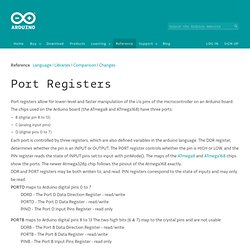
The chips used on the Arduino board (the ATmega8 and ATmega168) have three ports: B (digital pin 8 to 13) C (analog input pins) D (digital pins 0 to 7) Each port is controlled by three registers, which are also defined variables in the arduino language. The DDR register, determines whether the pin is an INPUT or OUTPUT. DDR and PORT registers may be both written to, and read. PortManipulation. Arduino is Slow - and how to fix it! Arduino is slow?

What? This instructable will show just how slow a part of Arduino is, and how to fix it. It’s true – more specifically, Arduino’s digitalWrite command takes a considerable amount of time. If you are just switching on a LED once or something, you won’t be able to notice it. However, I realized how slow it was while I was trying to use a TLC5947 PWM driver. Ready, Set, Oscillate! The Fastest Way to Change Arduino Pins « The Mind of Bill Porter. There are many ways to change an output pin.

The way we know and love is the famous digitalWrite() function. (Spoiler: Want a faster digitalWrite? Download Here!) But even the Arduino Reference claims that it is not the most efficient. The Arduino functions do a lot of error checking to make sure the pin is configured right and has to map Arduino numbering to actual IO ports. I ran some tests to find out. The estimated CPU cycles is calculated from ½ the waveform period measured divided by the period of 16Mhz, since it takes two write operations to complete a full period in a waveform. The 3 methods I tested were digitalWrite(pin, LOW); digitalWrite(pin, HIGH);CLR(PORTB, 0) ; SET(PORTB, 0);PORTB |= _BV(0); PORTB &= ~(_BV(0)); The macros used: Programming an ATtiny85 on a breadboard using AVR-ISP500 (STK500 compatible) AVR programmer. So I finally got my AVR programmer and I wanted to program my ATtiny85 MCU, to act as an RFID tag.

I got the code for the ATtiny85 RFID emulator from here and you can read more about that project there. Since I have never programmed an AVR before, I had to read a lot to figure out how simple it is to hook up an AVR to the programmer on a breadboard. This blog post might be helpful to those who want to just get their AVR programmed right away. Parts needed: - AVR-ISP programmer - ATtiny85 MCU - Breadboard - 3 x 1.5v Battery box with 3 x 1.5v batteries - I was able to find only a 4 x 1.5v battery box, so I soldered a wire instead of one battery. - 40pin Breakaway header - picture shows the 12 pins I have left, after using a bunch already... - 6 Breadboard wires Steps: ------- - Mark the breadboard wires like so: VCC, GND, RST, MISO, MOSI, SCK - I used a white duct tape, cut a little piece, stick it to a cable and write the letters on it with a pen. - Wire the pins according to the datasheet.