
Sms. Unlock. Alarm. Introduction to Android Development. Mobiletuts+ will be covering all major mobile platforms - iPhone, Windows, Android and Blackberry.
Today we'll be taking a look at Android development: explaining why people have choosen to work with Android and providing an overview of the Eclipse IDE and its Java, DDMS and debugging perspectives. Finally, you'll learn how to get started making your first Android app! Android 101 Tutorials: What is Android? Android is an open source mobile operating system that combines and builds upon parts of many different open source projects. Why Android? There are many advantages to developing for the Android platform: Zero startup costs to begin development.
Prerequisites before continuing with this article include: You must download and install the Eclipse IDE. The Eclipse IDE Eclipse is a complex, multi-language, and extensible Integrated Development Environment (IDE). After opening Eclipse for the first time, select a workspace to save your project within. The Java Perspective The DDMS Perspective. How To Enable the Android Market in the Google Android Emulator.
Would you like to try out apps from the Android Market on your PC?
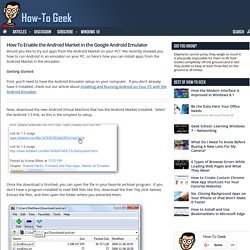
We recently showed you how to run Android in an emulator on your PC, so here’s how you can install apps from the Android Market in the emulator. Getting Started First, you’ll need to have the Android Emulator setup on your computer. If you don’t already have it installed, check out our article about Installing and Running Android on Your PC with the Android Emulator. Now, download the new Android Virtual Machine that has the Android Market installed. Once the download is finished, you can open the file in your favorite archival program. Open your Android virtual machine folder; you can do this easily by entering the following in your Explorer address bar: %userprofile%/.android/avd Copy the files and folder you just extracted to the .android/avd folder.
In your .android/avd folder, open the new AndEmu.ini file in Notepad. You’re now ready to start the new virtual Android. Setting up Your New Virtual Android Conclusion Link. Forum Nokia - resources for mobile application developers. Android Development « Mikey Hogarth. At the end of the last article I included a link to the official Android Hello, World application.

We’re going to proceed assuming that you have worked through that, although I will re-cover a lot of the topics from there (never hurts to do something twice!). I am also going back on the promise about all screenshots coming from the Windows platform (they’ll be from Ubuntu from now on) however as stated previously, developing for the Android platform is identical across all operating systems so this really doesn’t matter, and if there’s anything that’s Windows specific, I’ll cover it in that OS. Also if you’re having problems developing under Windows, please comment and I’ll be happy to help. Anyway, on with the show.
This time we’re just going to go over the environment you’ll be working with describe of some of the files and folders you can expect to encounter, followed by a quick look at the emulator. Project Name Application Name Package Name Create Activity Min SDK version The Emulator <? How to install Android on your Netbook/PC.