

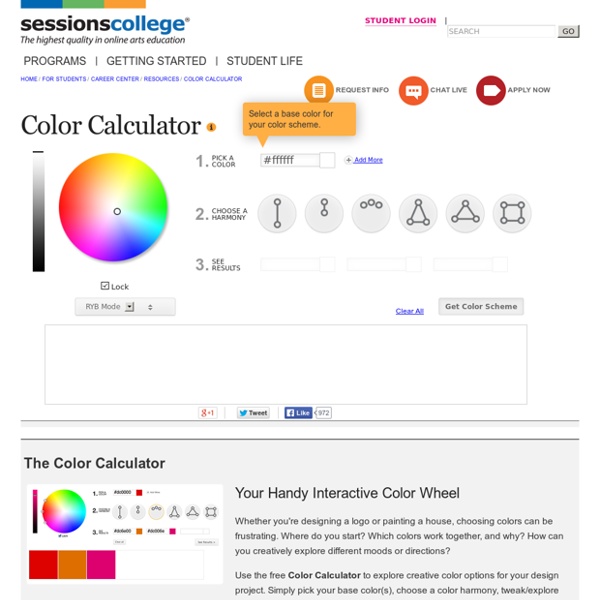
Basic color schemes: Color Theory Introduction With colors you can set a mood, attract attention, or make a statement. You can use color to energize, or to cool down. By selecting the right color scheme, you can create an ambiance of elegance, warmth or tranquility, or you can convey an image of playful youthfulness. Colors affect us in numerous ways, both mentally and physically. Being able to use colors consciously and harmoniously can help you create spectacular results. The Color Wheel The color wheel or color circle is the basic tool for combining colors. The color wheel is designed so that virtually any colors you pick from it will look good together. Traditionally, there are a number of color combinations that are considered especially pleasing. ColorImpact is designed to dynamically create a color wheel to match your base color. Primary, Secondary and Tertiary Colors In the RYB (or subtractive) color model, the primary colors are red, yellow and blue. Warm and cool colors The color circle can be divided into warm and cool colors.
Red Color Hue Range, Color Name List of Red Colors, HEX, RGB, HSL This and the following pages show a set of colors with their name, structured by sixteen predefined hue ranges and the range sets ordered by luminance. For red color a hue range from 355° to 10° has been defined. Pink-Red color hue range << previous next >> Red-Orange color hue range Pink-Red color hue range << previous next >> Red-Orange color hue range Tips: Browse fullscreen mode (usually press [F11]-key) to reduce color distraction. Link to this page: HTML Link Citation Email Copy and paste the following text: Creating a Logo in Picmonkey | On The Hook Boutique I know there are several free venues out there that are free or very cheap, but I’ve actually used Picmonkey and it was amazingly easy to create a logo! Now, I have no graphic experience whatsoever! None, I’ll repeat that, NONE. So this had to be something simple or I would never have accomplished what I did…. This is the opening page of Picmonkey.com and you should click on the “Create a Collage” option: Once you have opened the create a collage there will be a few options on the side of the menu. Once you have created a large blank square, you will the click on the “Palette” button on the left. After you have made your background transparent, you will go to the top of the picture area and click on the word “Edit”. Then you will choose the font for your text, and click on the “Text” button. I chose to use my own graphic that I found online in a clip art folder, but again, there are tons of free ones right there in the menu on picmonkey, so take a look. Hope this helped a bit! Like this:
5 Desktop Publishing Tools for Small Business It's ridiculously easy to find a range of good quality, free, or inexpensive software for just about every business task you can imagine—with one possible exception—desktop publishing. If you want to publish a small business newsletter or magazine, your options initially appear limited, pricey, and complicated. Digging a bit deeper, however, you'll find options better suited for small business publishing. 1. Microsoft Publisher has been around for years but for Windows only. Publisher is a competent tool for creating newsletters and other multipage publications. Figure 1: Microsoft Publisher includes lots of templates and advanced features, and it's a good all-round choice if you use Windows. The software provides plenty of templates that you can use to quick start your publication. Pricing for Microsoft Publisher 2013: $109.99. 2. InDesign is the big daddy of publication software, and it's available for both Mac and PC. 3. 4. Pricing for Scribus: Free. 5.
colourcode - find your colour scheme HSL Color Schemer: color scheme from HSL + HEX color palette The color schemer is a tool to generate a series of colors from a base color according to a specified scheming method. A scheming method in turn specifies which color properties will be manipulated and how additional colors will be calculated. Generally, in color scheming the value of a single color property is modified to generate additional colors. To begin color scheming, simply select a scheming method and then adjust the base color to your individual liking, or vice versa. If you switch to pHSL, please bear in mind that all colors, including the base color, get converted and the values of the color picker interface do not correspond to the current base color you are seeing. About the Scheming Methods Complementary Color Scheme Calculates the color at the opposite side of the color wheel (+ 180° hue). Split Complementary Color Scheme Calculates two colors which are mirrored at the complementary color's position with the specified distance in the settings box. Usage Tips HTML Link
10 Free Open Source Alternatives to Adobe Creative Suite Posted 06/21/2011 at 1:50pm | by Florence Ion When there's just not enough cash in the bank and you're in a bind, the last thing you're able to do is drop a ton of money for pricey software like Adobe Creative Suite. And sometimes, the professional-grade stuff is too much overkill for simple tasks like putting together a poster, blurring out a license plate in a photo or cropping out a shaky part of your vacation video. So that's what open source software is for. We compiled a list of some of the best open source Adobe Creative Suite alternatives. 10 of 10 10 Free Open Source Alternatives to Adobe CS View the full image GIMPReplaces: Photoshop GIMP is easily one of the most powerful pieces of open source software available on the internet today. SeaMonkeyReplaces: Dreamweaver SeaMonkey is a community-developed internet application suite that helps you code and develop websites for the Mozilla browser.
IN COLOR BALANCE | Подбор цвета | Page 12 Цветовая палитра №1883 желтый и лиловый, желтый и маджентовый, желтый и розовый, желтый и фиолетовый, лиловый и желтый, лиловый и розовый, маджентовый и желтый, маджентовый и розовый, оттенки лилового, оттенки розового, палитры для дизайна, палитры для дома, розово-фиолетовый цвет, розовый закат, розовый и желтый, розовый и лиловый, розовый и маджентовый, розовый и цвет фуксии, фиолетово-розовый цвет, яркий розовый и желтый. Цветовая палитра №1882 желтый цвет, золотой и изумрудный, изумрудный и золотой, изумрудный цвет, новогодние цвета, Новогодняя палитра, оттенки желтого цвета, оттенки зеленого, оттенки золотого цвета, оттенки изумрудного цвета, цвет для новогодней вечеринки, цвет шампанского, цвет янтаря, янтарные оттенки, яркий желтый. Цветовая палитра №1881 Цветовая палитра №1880 Цветовая палитра №1879 Цветовая палитра №1878 Цветовая палитра №1877 Цветовая палитра №1876
tools | color palette creator v1.6.1 This tool was inspired directly by the excellent Creating Color Palettes article by Andy Clarke. It will create 10 shades of the base color, located top-left, at varying degrees of opacity. The top row emulates opacity over a white background, the bottom over black (or colors of your choosing as of v1.4). The opacity values are 100% opaque, 75%, 50%, 25% and 10% on the top row. The bottom row begins at 85% rather than 100% and continues on as the first. How to use it: Type a valid six character hexidecimal value in the text box above and hit the "ok" button. Hit the "output hex" button to have the table below the palette display hexidecimal color values. Click the "save base" button to write the current base color to a cookie for safe keeping. As of version 1.6, you can export all of your saved palettes to a PNG image by clicking the "create PNG" button in the "saved" window.
Multi Model Color Blender, color blending RGB, Lab, HSL, HSL+, pHSL With the color blender you can blend two colors to generate one to eight intermediate colors. The equal gradation of color component values very likely produces a harmonious color set. You still need to experiment but it's fun and quite easy to get to a pleasing result. To tweak each individual color click on the links to the color picker or the color converter. The color picker interface allows you to set the source color and the destination color . Color blending then depends on the set amount of intermediate colors and the color model. About the Color Models L*a*b* L*a*b* blending is similar to RGB blending but you can easily notice how the chroma components influence blending. HSL, HSL+ and pHSL For all HSL color models there is clockwise and blending which depends on whether the hue value of the source color is smaller than the hue value of the destination color. HSL+ This color model uses equal gradation of (relative) luminance instead of lightness. Usage Tips Saving your colors: Email