

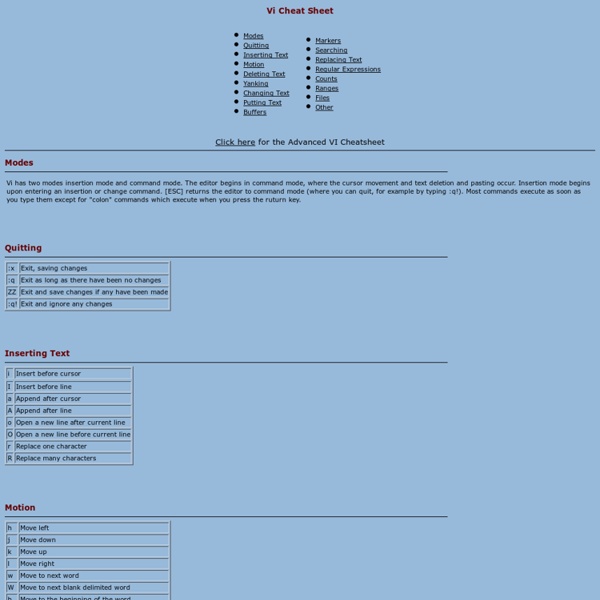
http://www.lagmonster.org/docs/vi.html
Low Level Bit Hacks You Absolutely Must Know I decided to write an article about a thing that is second nature to embedded systems programmers - low level bit hacks. Bit hacks are ingenious little programming tricks that manipulate integers in a smart and efficient manner. Instead of performing some operation (such as counting the 1 bits in an integer) by looping over individual bits, these programming nuggets do the same with one or two carefully chosen bitwise operations. To get things going I'll assume that you know what the two's complement binary representation of an integer is and also that you know all the the bitwise operations. I'll use the following notation for bitwise operations in the article: & - bitwise and | - bitwise or ^ - bitwise xor ~ - bitwise not << - bitwise shift left >> - bitwise shift right
8 Ways to Tweak and Configure Sudo on Ubuntu Like most things on Linux, the sudo command is very configurable. You can have sudo run specific commands without asking for a password, restrict specific users to only approved commands, log commands run with sudo, and more. The sudo command’s behavior is controlled by the /etc/sudoers file on your system. This command must be edited with the visudo command, which performs syntax-checking to ensure you don’t accidentally break the file. Specify Users With Sudo Permissions Mastering the VI editor Mastering the VI editor Mastering the VI editor (PDF format) Index Introduction How to write a simple operating system in assembly language (C) 2013 Mike Saunders and MikeOS Developers This document shows you how to write and build your first operating system in x86 assembly language. It explains what you need, the fundamentals of the PC boot process and assembly language, and how to take it further.
A Short IRC Primer _ [ Note: At 93 K in size, this “short” help file is anything but short, and may take over a minute to load if you have a slow modem. Don’t access anything in the table of contents until the whole thing is loaded. —Jolo ] _ Written by: Vim Tab Madness. Buffers vs Tabs - Josh Davis 05 April 2014 First I have to admit, I was a heavy user of tabs in Vim. I was using tabs in Vim as you’d use tabs in most other programs (Chrome, Terminal, Adium, etc.). I was used to the idea of a tab being the place where a document lives. When you want to edit a document, you open a new tab and edit away! That’s how tabs work so that must be how they work in Vim right? Deleting tons of files in Linux (Argument list too long) Deleting tons of files in Linux (Argument list too long) Quick Linux Tip: If you’re trying to delete a very large number of files at one time (I deleted a directory with 485,000+ today), you will probably run into this error:
Can You Top This? 15 Practical Linux Top Command Examples This article is part of the on-going 15 example series where 15 examples will be provided for a specific command or functionality. In this series, earlier we discussed about find command, crontab examples, grep command, history command, ping command, and wget examples. In this article, let us review 15 examples for Linux top command that will be helpful for both newbies and experts. 1. Show Processes Sorted by any Top Output Column – Press O By default top command displays the processes in the order of CPU usage.