

Votre profil Google Map Maker - Centre d'aide Google Map Maker Votre profil est une page personnelle contenant l'intégralité de votre historique cartographique (modifications et avis). Pour l'afficher, connectez-vous à Google Map Maker à l'aide de votre compte Google. Si vous ne possédez pas de compte Google, créez-en un ici. Une fois connecté, cliquez sur Options et sélectionnez Mon profil dans la liste déroulante qui figure dans l'angle supérieur droit de l'écran pour accéder à votre page de profil. Votre page de profil contient plusieurs onglets : Aperçu : cette section contient vos statistiques générales de cartographie, ainsi que certaines modifications examinées récemment.Modifications : cette section contient l'ensemble de vos modifications.Vérifications : cette section contient toutes les modifications que vous avez examinées. La page de profil contient le nom, l'adresse, la catégorie et l'état de vérification actuel de chaque modification. Une icône s'affiche à côté du nom des Modérateurs Google.
How to Set Up a Google+ Page for Your Business Google+ has opened the doors for business and brand pages. In this article I show you how to set up your Google+ page and provide examples. If you haven’t already created a personal Google+ profile for yourself, you’ll need to do that first (you cannot simply sign up a business page from the main Google+ signup screen). Check out the How to Get Started With Google+ for more on personal Google+ profiles. If you do have a personal profile, here’s how to create a page for your business. Visit Create a Page on Google+ to begin, and follow the steps below to get started with Google+ pages. Pick a category Pick a category for your Google+ page to fall under. The first step in getting started creating your Google+ page is to choose from the following five main categories. #1: Local Business or Place Local Business or Place includes any local business—hotels, restaurants, places, stores or services. Add your local business information to Google+. #2: Product or Brand #4: Arts, Entertainment or Sports
20 Google Docs Secrets for busy teachers and students. Google Docs has revolutionised the way we create and edit content on the web. It is a genuine collaboration tool like nothing that has come before it. Up to 50 people can simultaneously edit a spreadsheet, presentation or document at no expense, and it is available on all mobile and desktop platforms. Today we are going to look at 20 great tips every teacher and student should be using to get the most of the collaborative learning opportunities Google Doc’s offers. Allow editing without signing in: If you’re sharing a document with classmates who don’t have a Google login, just make it available to edit without signing in. Chat away: In Google Docs, you can see anyone who is currently editing the document, and if needed, send a message to chat with them. Embed Docs anywhere: Get a link to your document or spreadsheet, and you can embed or publish it anywhere, including Facebook or a class blog. Create graphs: Visuals are great tools for getting your point across.
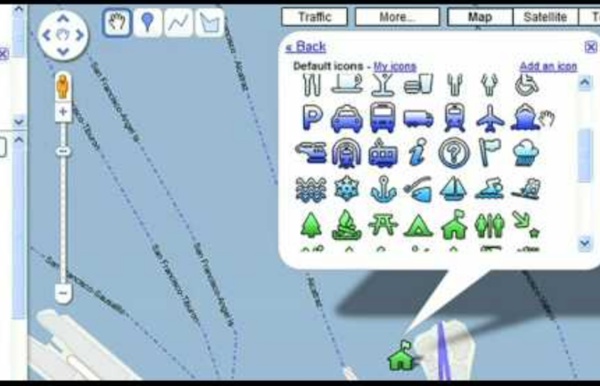
IconesPlans - google-maps-icons - More than 1000 free and descriptive map POI markers, icons, for your maps The project has moved. A dedicated website, with new features. Follow this URL : Icones, Plans, Symboles, Cartes, Gratuites, Marqueurs, Cartographie, GIS, Carte, POI Map Icons Collection est un pack de plus de 1000 icônes gratuites pour les points d'intérêt de vos cartes. Organisées par couleur et par rubrique, vous avez une collection complète de marqueurs tels que: cinéma, école, banque, restaurant japonais ou encore magasin de vêtements. Tous nos ICÔNES décrites, étiquetés et organisés en catégories Ajoutez les icônes à vos cartes ou à Google Earth. Icônes Administration, Bureaux & Industrie Icônes Amis, Famille & Immobilier Icônes Culture & Divertissement Icônes Divers Icônes Education & Enfance Icônes Evènements & Temps Icônes Magasins Icônes Media Icônes Nombres & Lettres Icônes Restaurants & Hôtels Icônes Sports, Santé & Beauté Icônes Tourisme & Nature Icônes Transports
How to Get Started With Google+, Your Complete Guide By now, you have all probably heard about the Google+ project , Google’s next attempt at making their network more social. Its goal is to make sharing online more like sharing in real life. If you haven’t gotten your invite just yet, you can in the following quick-look video, and by visiting the Google+ project overview , searchable details and discussion pages. You can also take a demo tour so you can once you are able to join the project. Limited Field Trial Invites If you’re one of the lucky ones, you received an invite for Google+ during their limited field trial. Here is an example email invite to Google+. Whenever you click on the button, you’re taken to the invite screen for Google+. Join Google+ when someone sends you an invite. Two things to note when joining “Things may not always work as intended. There is also a checkbox that says “Google may use my information to personalize content and ads on non-Google websites.” The Welcome Screen Creating Your Profile Adding Connections
Five Essential Google Drive Skills For Teachers This school year I've worked with a few school districts that are using Google Apps for Education for the first time. A lot of what I have done with those school districts is help to get the teachers acclimated to using Google Drive. When I sat down to plan an upcoming Google Drive training session I thought about some of the essential Google Drive skills that teachers need in addition to creating documents, presentations, and spreadsheets. 1. 2. 3. 4. 5. Step 1: Step 2: Step 3: Step 4:
Didacticiel KML - Keyhole Markup Language - Google Développeurs Tip: To see the KML "code" for a feature in Google Earth, you can simply right-click the feature in the 3D Viewer of Google Earth and select Copy. Then Paste the contents of the clipboard into any text editor. The visual feature displayed in Google Earth is converted into its KML text equivalent. Be sure to experiment with this feature. All of the examples described here are in the KML Samples file. For More Information The KML 2.2 Reference provides details about the KML file format. For a discussion of how to use some of the key features in KML, see the Developer's Guide. The simplest kind of KML documents are those that can be authored directly in Google Earth—that is, you don't need to edit or create any KML in a text editor. Placemarks A Placemark is one of the most commonly used features in Google Earth. Open the KML Samples file in Google Earth and expand the Placemarks subfolder. The structure of this file breaks down as follows: An XML header. Descriptive HTML in Placemarks Paths
15 Awesome Gmail Tips and Tricks Gmail is the best thing that happened since sliced bread. That may sound like an over statement. If you really think about it, Gmail definitely has changed the way how we manage emails. Without Gmail, I cannot imagine processing 100′s of emails effectively every day without breaking a sweat. In this article let us review 15 awesome Gmail tips and tricks that will help you to manage your emails effectively. 1. “Oops, I forgot the attachment in my previous email. The cure is Gmail’s Attach Alerter. Fig: Gmail Attachment Reminder Click on “Settings” link, Click on “Labs” tab, Select “Enable” option button in “Forgotten Attachment Detector” Click on “Save Changes” at the bottom This will help your message recipient not to receive inevitable follow-up emails with attachments. Attachment Tip: Attach before composing It is good idea to attach the file before start typing the message. You can delete an attachment by deselecting the check box in front of the file name. 2. 3. 4. Creating Labels 5. 6.
How To Use Google Voice Commands In Google Drive Editor’s note: This is a revised version of an article we originally ran on March 22nd, 2014, updated to reflect the latest Google innovations. Since its inception, Google Drive has been a source of excitement for innovation-minded educators. However, as with any new teaching technology, you may find yourself thinking “it sounds intriguing, but will it really make a difference?” In regards to Drive features like audio feedback, the answer to that question is an unequivocal yes. Aside from offering convenience and helping spare teachers from endless amounts of typing, the addition of voice commenting brings with it profound benefits to the learning experience as a whole. Below, you’ll find five compelling reasons to give it a try, as well as a simple guide on how to get started. Image via Flickr by Ben Marvin Conversational Grading: Red ink is synonymous with financial debt and academic failure. Unfortunately, there’s only so much that can be said with traditional grading methods.
Earth API Guide du développeur - Google Earth API - Google Développeurs Introduction Welcome to the developer documentation for the Google Earth API. The Google Earth Plugin and its JavaScript API let you embed the full power of Google Earth and its 3D rendering capabilities into your web pages. Just like in the Google Maps API, you can draw markers and lines—but in 3D! See the Google Earth API developer forum if you have have questions about the API after reading this developer guide. Audience This documentation is designed for people familiar with JavaScript programming and object-oriented programming concepts. The Google Earth Plugin The Google Earth Plugin is currently supported on the following platforms: Microsoft Windows (XP, and Vista) Google Chrome 5.0+ Internet Explorer 7.0+ Firefox 3.0+ Flock 1.0+ Apple Mac OS X 10.5 and higher (Intel) Google Chrome 5.0+ Safari 3.1+ Firefox 3.0+ Although the plugin and API may work correctly on other browsers that support NPAPI with npruntime extensions, these browsers are not officially supported. Installation
How to use Google for Hacking. | Arrow Webzine Google serves almost 80 percent of all search queries on the Internet, proving itself as the most popular search engine. However Google makes it possible to reach not only the publicly available information resources, but also gives access to some of the most confidential information that should never have been revealed. In this post I will show how to use Google for exploiting security vulnerabilities within websites. The following are some of the hacks that can be accomplished using Google. 1. Hacking Security Cameras There exists many security cameras used for monitoring places like parking lots, college campus, road traffic etc. which can be hacked using Google so that you can view the images captured by those cameras in real time. inurl:”viewerframe? Click on any of the search results (Top 5 recommended) and you will gain access to the live camera which has full controls. you now have access to the Live cameras which work in real-time. intitle:”Live View / – AXIS” 2. 3. “? 4.
38 Ideas to Use Google Drive in Class August 11, 2014 This is the third post in a series of posts aimed at helping teachers and educators make the best out of Google Drive in classrooms. This series comes in a time when teachers are getting ready to start a new school year and hopefully will provide them with the necessary know-how to help them better integrate Google Drive in their teaching pedagogy. The two previous posts featured in this series were entitled consecutively "New Google Drive Cheat Sheet" and "Teachers Visual Guide to Google Drive Sharing". Today's post covers some interesting ideas and tips on how to go about using Google Drive in your classroom. This work is created by Sean Junkins from SeansDesk. Google Docs