background preloader

Design with Swirls and Flourishes
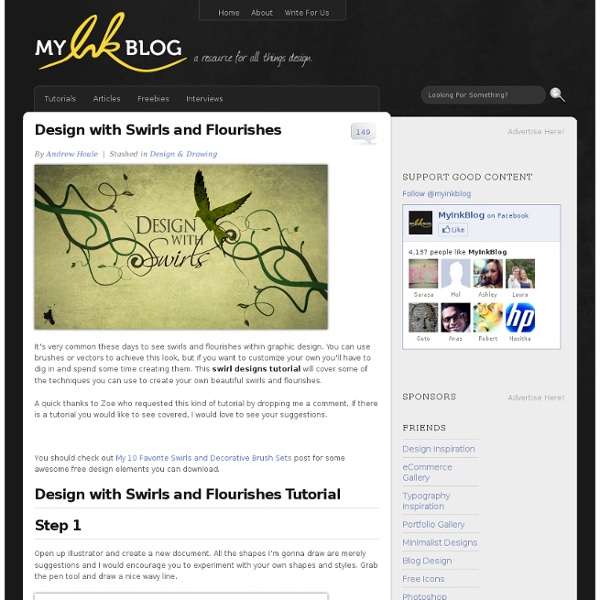
Design with Swirls and Flourishes
It’s very common these days to see swirls and flourishes within graphic design. You can use brushes or vectors to achieve this look, but if you want to customize your own you’ll have to dig in and spend some time creating them. This swirl designs tutorial will cover some of the techniques you can use to create your own beautiful swirls and flourishes. A quick thanks to Zoe who requested this kind of tutorial by dropping me a comment. You should check out My 10 Favorite Swirls and Decorative Brush Sets post for some awesome free design elements you can download. Design with Swirls and Flourishes Tutorial Step 1 Open up Illustrator and create a new document. Step 2 Throughout this tutorial we are going to create brushes and symbols to help us make the shapes. Step 3 Open up the brushes palette. Step 4 Click on the swirl you made and then the new brush you made to apply the brush. Step 5 Next up we are going to make a tighter swirl at the end of our line utilizing the spiral tool. Step 6 Step 7

Create a Zee Vintage Label on Illustrator It seems that the past 3 years had a boom of retro design, starting with the "cosmic neon lightning" 80's aesthetic that I think most of you are already bored about. Not just because it became a trend, but also because everyone with a photoshop could emulate one. So here's the thing, this new retro wave more focused on 50's and 60's design and illustration seems to be really different, why? Let's assume, the last 20 years were pretty revolutionary to design since the computer took a big role on productivity and creation. Step 1 First of all, let's open Adobe Illustrator and create a new canvas with 21 x 21 cm (8,27 x 8,27 inches). You probably already know I'm addicted to guides, they're quite useful to get layout orientation, but not exactly a need to. You should divide your layer like these, use command + L / ctrl + L to create new layers. Using the rectangle tool (M) make this big square that fits over the canvas. Make a rectangle inside, using the previous tool. Step 2 Step 3 Step 4 Step 5

How To Create a Cool Vector Yeti Character in Illustrator Follow this step by step Illustrator tutorial to create a cool vector Yeti character. We’ll use as many basic shapes as possible to achieve that quirky style of illustration, then bring the character to life with a palette of cold colours. Despite the use of basic shapes this tutorial includes a good spread of intermediate to advanced tools and techniques. The Yeti character we’ll be creating is made up of basic shapes to maintain that simple illustration feel. The plump round shapes all help create a friendly and loveable character while the high shoulders and wide stance give him a slow and lazy personality. View the vector Yeti character design Whenever you start a character design it’s always worth creating a rough sketch to base any vector element on. Match up basic shapes to flesh out the overall appearance of the character. Select one end of the open path and join it to fill the gap. Draw a large circle to match the profile of the arms. Download the source file

Tips on Creating Fluffy Characters One of the best things about clients is that they're always surprising us with some random and misterious pitch works. One of my last briefings was to create a fluffy character, but since I always made illustrations more realistic, this was quite a challenge for me. As some of you may have thought, I also tought that creating a fluffy character would be as easy as drawing an apple, but I was wrong and on this tutorial I will explain the reasons why. So, you may be asking yourself, why is not that simple to create a fluffy character? Well, character design is actually a specific field, so as every specific field on art/design area, it has some rules and guidelines. Melanie Matthews Tamara Henderson Jeremy Ville Bruno Mota Ok, now that we are inspired, let's do it! 1) Remarkable and Simple Silhouette First of of all, let's try a bit of trivia, can you recognize the characters bellow? Did you recognize most of them? 2) Few and Light colors 3) Simple Trace 4) Round and Disproportional Shapes

Create Your Own Spoof Airplane Safety Illustrations This post was originally published in 2008 The tips and techniques explained may be outdated. A reader commented on a previous post with the great idea of creating a tutorial on how to produce vector illustrations in the style of the safety cards found in aircraft, as seen on examples from Airtoons.com. Follow this step by step guide to creating your own illustrations, ready for the combination with comedy captions! Unless you are a talented artist, use photography as a base for your poses. Roughly trace around the outline of the character, minimizing some of the detail if necessary such as the folds and creases in clothing. Continue by creating more paths outlining the shape of the face, here I've used my own discretion to give the character a stylish side parting. Go into further detail and outline the main facial features such as the eyes, eyebrows, nose and mouth. Click and drag a selection around your Path and Ungroup (SHIFT, CTRL + G).

Create a Themed Repeating Pattern in Illustrator This post was originally published in 2008 The tips and techniques explained may be outdated. Follow this Adobe Illustrator tutorial to create a range of simple vector objects based around the theme of a designer's lifestyle, then tile them together into a cool looking repeating pattern. The creation of objects based on Illustrator's basic shapes makes for a great tutorial for beginners while resulting in an awesome outcome which can be put to use in a range of design projects. The idea of basing the pattern around a theme helps develop a list of objects that can be used within the pattern. Macbook Pro LaptopApple Mac MousePencilPenRulerSet SquareNotepadiPhoneMug of Coffee The design will be based on a two-colour palette of browns, start work by creating a new Illustrator document and drawing a rectangle to fill out the artboard. Using the Rounded Rectange Tool, draw a shape of similar proportions to the Macbook. To create the pencil, draw a long and thin rectangle.

How To Create a Cute Hairy Vector Monster Character Follow this step by step Illustrator tutorial to create a cute vector monster character. We’ll create the character from basic shapes to give a cute and friendly appearance then we’ll bring the character to life with gradient colours and a detailed fur effect. The fantasy woodland monster we’ll be creating is made up of lots of simple rounded shapes to give the character a friendly appearance. The large eyes in relation to the size of the body is the key ingredient to creating a cute and lovable character. View the final cute monster character Open up Adobe Illustrator and draw an ellipse on the artboard. Select the uppermost point and drag it vertically to create more of a pointed shape. Inside the body area use the circle tool to draw the outlines of an eye. Make a duplicate of the eye shapes then group them together. Flatten the upper edge of a smaller ellipse using the Direct Selection tool to create the basics of a mouth. Begin adding a range of gradient fills to the eye shapes.

Combine Photo Elements to Create a Surreal Photo Manipulation Combine Photo Elements to Create a Surreal Photo ManipulationReviewed by Oliver Cereto on Feb 13Rating: Preview of Final Results Step 1 – Place the background The first step it’s to place the sky, our background, into the image. As you can see, we have changed the color of it. Step 2 – Coloring the sky Duplicate the layer with the sky. Select the eraser tool then, in the option bar, select a blurred brush like shown below: Now use the eraser tool to erase the left side of the sky in the top layer. Step 3 – Add the model Now let’s open picture of the model.

Related:
