

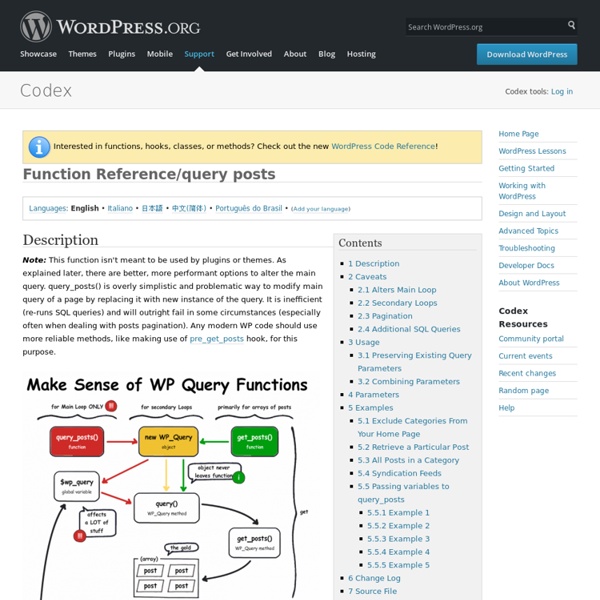
4 Ways to Loop with WordPress At the heart of the WordPress theme template is the venerable WordPress loop. When you’re looking at your index.php file, for example, the loop is the part that typically begins with if(have_posts()) and contains all the tags and markup used to generate the page. The default loop works perfectly well for most single-loop themes, but for more advanced designs with stuff like multiple and custom loops, more looping power is needed. Fortunately, WordPress provides plenty of flexibility with four ways to loop: Each of these looping methods is useful in a variety of situations. The Default Loop The default WordPress loop looks something like this: <? So what makes it “default”? Based on the query that is sent, the default loop will display a certain number of posts from a certain category from a certain date, and so on. So the default loop is perfect if you’re happy with the query that is sent, but it is also possible to customize the query and generate an entirely different set of posts. <? <? <?
The Loop in Action The Loop in Action Languages: English • Español • 日本語 • 中文(简体) • Українська • Русский • (Add your language) Introduction "The Loop" is the main process of WordPress. You use The Loop in your template files to show posts to visitors. You could make templates without The Loop, but you could only display data from one post. Before The Loop goes into action, WordPress verifies that all the files it needs are present. If the user didn't ask for a specific post, category, page, or date, WordPress uses the previously collected default values to determine which posts to prepare for the user. After all this is done, WordPress connects to the database, retrieves the specified information, and stores the results in a variable. By default, if the visitor did not select a specific post, page, category, or date, WordPress uses index.php to display everything. The World's Simplest Index Page The Default Loop Begin The Loop First, it checks whether any posts were discovered with the have_posts() function. <!
Super Loop: Exclude Specific Categories and Display any Number of Posts Readers occasionally ask for help with their WordPress loops. Usually, these requests involve modifying the loop with some customized functionality. Frequently, such customization involves one of these popular behaviors:Exclude a specific categoryExclude multiple categoriesDisplay only one post or excerptDisplay some fixed number of postsPlay nice with additional loops on the same page In this article, I present the swiss-army knife of WordPress loops. This highly versatile, “super” loop is standard WordPress code, easily implemented, and fully equipped to handle all of the custom behaviors mentioned above. Further, the PHP employed is self-contained, making it ultra-easy to pimp it up tough with your own (X)HTML markup. The Complete Code As is our custom here at Perishable Press, we present the full code offering right up front. The Breakdown Now let’s take a look under the hood, one chunk at a time, and translate the loop to meatspeak: The Throwdown Usage Tweaks Multiple Views Excerpts Only
Main Page 10 Exceptional WordPress Hacks Advertisement One of the reasons people love WordPress so much is its great flexibility. You can change the software’s appearance with themes. Today, let’s do it again with 10 new and totally killer WordPress hacks to make your blog stand out from the crowd. You may be interested in the following related posts: 1. The problem. The solution. Code explanation. Using the PHP function file_get_contents(), we can get it and assign it to the $tinyurl variable. Source: How to: Automatically provide TinyURLs for your WordPress blog posts6 2. The problem. The solution. <div id="zukunft"><div id="zukunft_header"><p>Future events</p></div><? Once you’ve saved the file, your upcoming posts will be displayed on your blog. Code explanation. The parameter used is post_status, which allows you to get posts according to their status (published, draft, pending or future). How to: List future posts7 3. The problem. The solution. Code explanation. How to: Add a “Share on Facebook” link to your WordPress blog8 4.
10 Useful WordPress Loop Hacks The loop is a very important aspect of WordPress blogs. In fact, the loop is what allows you to get posts from your WordPress database and print them on the screen. A set of useful and user-friendly functions, the loop is incredibly powerful. With it, you can get a single post, a list of posts ordered by date, title or category, a list of posts written by a specific author and much more. In this article, we’ll show you 10 useful things you can do with the WordPress loop to make your blog even more powerful than it is right now. You may be interested in the following related posts: 1. Image source: Shutterstock The problem. The solution. <? Code explanation. As a result, the “WHERE” clause contained in the filter_where() function is added to the end of the SQL query contained in the post_where() function, which means that the loop will return posts published only between the two dates specified in the filter_where() function. Source 2. The problem. The solution. Code explanation. 3. <? 4. 5. <?
5 Ways To Include Template Files In WordPress As long as you work with WordPress, you’ll realize that some code is repeated itself many times, like the loop. The new Twenty Ten theme in WordPress 3.0 has put loop code in into a loop.php file to make it separated, and when it’s needed, just include it into theme file. Why don’t we follow that? Separating a repeatitive code into a file is a good way to organize and manage code. 1. The first way to include a template file into current file of course is built-in PHP instructions: include and require: include TEMPLATEPATH . or include(TEMPLATEPATH . (We can use it as PHP instruction or as function) This method is fastest way because it does the job as simple as possible. 2. load_template() load_template() is just the WordPress version of require()! load_template(TEMPLATEPATH . 3. locate_template() To check file existence, we can use locate_template(). locate_template($template_names, $load); $template_names is an array of template files that will be checked. 4. get_query_template()
45+ Fresh Wordpress Tutorials, Techniques and Hacks In this article we have collected 45 fresh WordPress tutorials and techniques, with some hacks, guides and best practices thrown in for good measure. Everyone, not just developers, should take something from this round-up. The growth and popularity of WordPress continues to spiral to a seemingly endless end. It continually proves itself time time and again that it has very few limitations, and is rapidly pushing itself to being, if not the best, but certainly the most versatile CMS available. How To Create a WordPress Theme: The Ultimate WordPress Theme Tutorial In detailed 11 individual lessons this tutorial will show you how to build a powerful, up-to-date, SEO friendly WordPress theme from scratch. Custom WordPress Homepage with Customizable Widgets In this Tutorial, you’ll learn how to build a Custom homepage for your WordPress Theme using Page Templates: Complete with a featured content slider, and customizable Widgets. How to Build a Custom WordPress Theme from Scratch
How to Create a Theme Development Environment for a Live WordPress Site – Inspect Element 11th January, 2010 Tom Kenny Tutorials Any good website owner knows that they need to be constantly looking at ways to improve their site even through small little tweaks. If you’re using WordPress you’ll notice that it isn’t easy to create a development version without creating a separate installation. Of course, you can make changes directly on a live WordPress site but that isn’t recommended for anything other than minor tweaks. With the help of an excellent plugin for WordPress called Theme switch and preview, this tutorial will allow you to easily switch between the live site and development versions using two different themes on the same installation of WordPress. We’ll do this by creating a bar at the top of the page which will clearly show you if you’re viewing the live theme (what everyone else sees) or the development theme with a link to switch between the two. Step 1: Install Theme Switcher WordPress Plugin Step 2: Create a Copy of the Current Theme <? <? <? Additional Styling
How to Display Recent Posts in WordPress Displaying Recent posts often helps your users to visit them easily specially on the sidebar of a single post page. But in some designing processes people want to display recent posts in many different ways. In this post, we will show you various different ways you can display the recent posts in WordPress. Displaying Recent Posts in a List Format The list format is mostly used in sidebars of WordPress pages. You can change the number 10 to the number of posts you like to display. If your theme support Widgets, then there is an easier option for you. Displaying Recent Posts with Summary Some people like to display recent posts with a title and a short description. The first way is: <ul> <? And you make sure that the excerpt is a short description of the post. Another way to limit the number of characters displayed in the content is by manually stripping out post content during the query to display only a limited number of characters. Displaying Recent Posts with Full Content <ul> <?
Top 10 Content Slider Plugins for Wordpress The use of sliders may be ubiquitous, but how people use them is changing. While many still use the all-encompassing slider front-and-center on their home page, others find niche uses like dynamically showcasing products or blog content. When it comes to WordPress, there are plenty of plugins available to cater to these different uses. However, there are some shared features that any good slider should include. Here are ten WordPress slideshow plugins that you can download for free. Video Slider & Slider Carousel If you’re looking for a way to showcase video content, check out Video Slider. The plugin also accepts videos from a variety of sources, including locally-hosted MP4 files, YouTube, Vevo, and Vimeo. WP Responsive Recent Post Slider & Carousel Feature your news or blog posts with WP Responsive Recent Post Slider/Carousel. The pro version offers a wide variety of design options and works with leading page builder plugins. Soliloquy Slider Plugin MetaSlider Master Slider Smart Slider 3
Custom Menus If you have a theme that supports the Custom Menus feature, you can create and arrange a group of navigation links for your visitors to find the important parts of your site faster. Most Custom Menus will show in the header area at the top of your site (the main navigation area), though this location can vary from theme to theme. With some themes, you may have the option to create and display multiple custom menus in different places on your site, such as the footer or special sidebar areas. Creating a custom menu allows you to do the following things: Change the order of pages in your menu, or delete them! This video shows the basic steps for creating your first custom menu, and you can read more about each feature (plus advanced tricks) below. To create a custom menu, go to Appearance → Menus in your dashboard. To create a new menu, click the create a new menu link, then just type in a Menu Name (to help you remember what it is), and click the Create Menu button. ↑ Table of Contents ↑
Jetpack by WordPress.com Jetpack is a WordPress plugin that helps you create better content, grow your subscribers, earn money from your website and keep it safe, fast, and secure. You can grow and keep track of your website traffic with Jetpack stats, and create better content with Jetpack AI. You can start a newsletter and grow your audience, turning fans into paying subscribers. Create beautiful content with Jetpack Creator and keep your site fast with Jetpack Boost. Installation is free, quick, and easy. We have a global team of Happiness Engineers ready to provide incredible support. Safer. WordPress security, performance, marketing, and design tools — Jetpack is made by WordPress experts to make WP sites safer and faster, and help you grow your traffic. We guard your site so you can run your site or business. Back up your site automatically in real time and restore to any point with one click. Get blazing fast site speed with Jetpack. Create your ad.