
Is your computer running slower than before? Or you may be weary of waiting forever for your computer to boot. You are not alone.
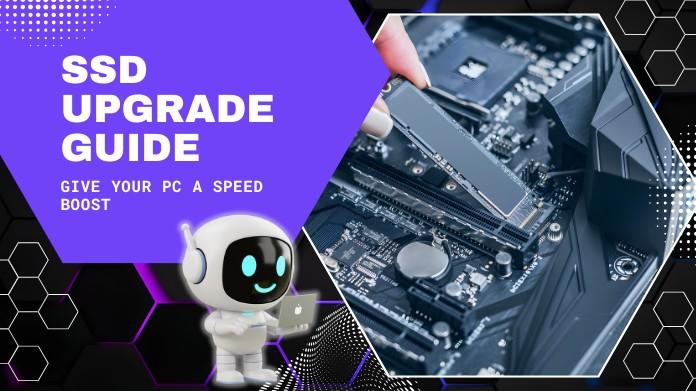
Many people experience slowness and poor performance due to aging hard disks. What is the good news? A simple SSD upgrade can bring new life to your PC.
If you're wondering how to start your update or which tools will help make the process go more smoothly, you've come to the perfect place.
You may quickly and reliably format USBs, SD cards, and big disks to FAT32 with GUI Format, a free program. When upgrading an SSD, this is a great way to manage or prepare storage.
In this article, we’ll walk you through how to switch to an SSD safely and efficiently - no specialized tech skills required. Whether you’re using a desktop or a laptop, you’ll soon enjoy faster load times, smoother multitasking, & increased system performance.
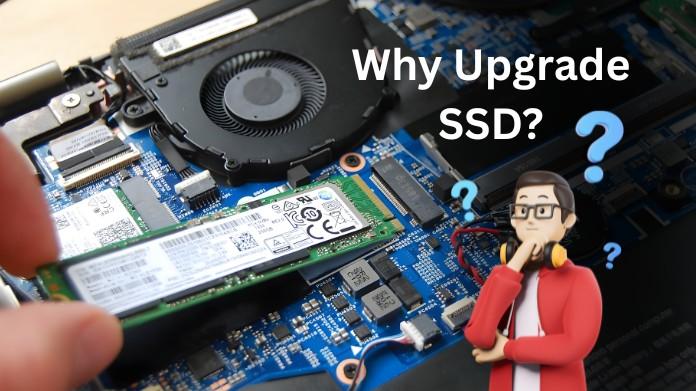
Updating to an SSD (Solid-State Drive) is one of the best ways to boost your computer’s speed and reliability.
Once you convert, you'll notice how much better your system runs; it's like getting a brand-new computer without spending a fortune.
Before you begin the upgrade, gather all of the necessary equipment & components to ensure smooth operation. Having everything ready ahead of time will save time and help you avoid interruptions once you begin.
Here’s what you’ll need:
Step 1: Backup Your Data
Before doing anything else, back up your files to an external drive or an online storage service. This makes sure that even if something goes wrong, your info remains safe.
Step 2: Clone Your Current Drive (Optional but Recommended)
Make a copy of your current hard drive onto the new SSD to avoid having to reload anything.
Step 3: Physically Install the SSD
Once cloning is complete, power down your computer.
Step 4: Boot from the SSD
Turn your system back on and enter the BIOS/UEFI (usually by pressing F2, F10, or Del).
To set up your new SSD, either clone your old disk or prepare your system. Then, follow these steps:
By taking this step, you can be confident that your SSD is placed securely and that your system will boot up more quickly than before.
If something doesn’t go as planned, here’s how to fix common issues:
Upgrading to an SSD is one of the simplest and most effective ways to increase your computer's performance. If you follow this comprehensive tutorial and have the right tools, such as programs like GUI Format for effective storage management, you might complete the upgrade in less than an hour.
After that, your system will operate more smoothly, boot up more quickly, and be more responsive overall. Compared to previous hard drives, an SSD upgrade not only boosts performance but also increases system longevity and reliability.
Purchasing an SSD now will ultimately save you time and frustration and improve the quality of your daily computing experience.
About the Author
Hello, my name is Wilford Conrad. I'm a tech enthusiast and web developer who enjoys learning about PC hardware and performance enhancements. I like to share simple, valuable tips to help others get the most out of their technology.
Did you find this SSD upgrade helpful guide? I'd love to hear your opinions, so please share them here!
Ref:
Klein, A. (2024, March 8). How to Upgrade Your Computer: Migrating from HDD to SDD. Backblaze Blog | Cloud Storage & Cloud Backup. https://www.backblaze.com/blog/ssd-upgrade-guide/