
Vegas Product Family Overview. All of the products in the Vegas software family make it easy to import and edit movies, images, and music so you can jump right in and start creating your next video or audio masterpiece.
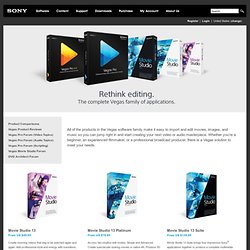
Whether you're a beginner, an experienced filmmaker, or a professional broadcast producer, there is a Vegas solution to meet your needs. From US $49.95 Create stunning videos that beg to be watched again and again. Add professional style and energy with transitions, titles, and video effects. Easily upload your finished movies on YouTube™ and Facebook™ without leaving the application. More InformationDownload Free TrialAdd to Cart From US $79.95 Access two intuitive edit modes: Simple and Advanced. More InformationDownload Free TrialAdd to Cart From US $139.95 Movie Studio 13 Suite brings four impressive Sony® applications together to produce a complete multimedia experience.
More InformationDownload Free TrialAdd to Cart From US $399.95 Add to Cart From US $599.95 From US $799.95 Only US $169.95 From US $89.95. Scripting in Vegas Pro and Sound Forge. By Gary Rebholz One feature that sets Sony Creative Software applications apart from all others is a robust support for scripting. Both Vegas Pro and Sound Forge support scripting technology. In this article, we're going to explore scripting and gain an understanding of just how powerful this feature is. I'll talk in mostly general terms about scripting in Vegas Pro, but for the most part scripts work in a similar fashion in Sound Forge. First things first; what exactly is scripting? Here's an example.
Your heart soars with your accomplishment and you can already feel that check in your hands. Then she says, "The only thing I want you to do is create a fade out of 15 frames at the end of each clip and a fade in of 15 frames at the beginning of each so that they all fade to black before the next one fades in. Your heart sinks and that paycheck just flew out of reach. Here's where scripting can help. Let's take a look at a script to see exactly how you can use them. So that's scripting. Sony Vegas Pro 9: Extract/Import Camtasia Videos. How To: Get rid of black bars in Sony Vegas Pro 8 & 9. Sony Vegas Tutorials. SONY VEGAS Tutorials - The Editing Suite. Bra Tutorials. Creating a News-Intro Part 3. Tutorial Overview: Step 1 Start Sony Vegas and create a new project (PROJECT -> NEW).
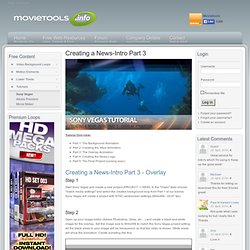
In the "Video"-field choose "match media settings" and select the created background loop from Part 1 of our tutorial. Sony Vegas will create a project with NTSC-widescreen settings (864x486 / 29,97 fps). Step 2 Open up your image-editor (Adobe Photoshop, Gimp, etc ...) and create a black and white image for the overlay. You can download the sample image here: CLICK TO DOWNLOAD Step 3 Import the animation from "Creating a News-Intro Part 1" and the matte-image into your project (PROJECT -> IMPORT) (1).
Step 4 Right-Click the matte-image (1), select "Media FX" and add "Mask Generator" (2). Step 5 Now click the little icon (1) on the text-track and select "Multiply (Mask)" (2): Next click on the arrow-icon on the overlay-track (1): Step 6 Select "PROJECT -> RENDER AS" to create a Quicktime file. Step 7 To use your created overlay animation, simply import the rendered quicktime file to your project. Step 8.