
Downloading past purchases from the App Store, iBookstore, and iTunes Store. Languages With iTunes in the Cloud, you can access your past purchases from the iTunes Store, App Store, iBooks Store, and Mac App Store.
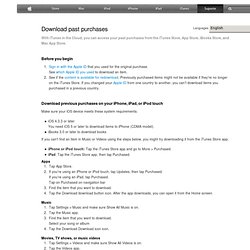
Before you begin Sign in with the Apple ID that you used for the original purchase. See which Apple ID you used to download an item. See if the content is available for redownload. Download previous purchases on your iPhone, iPad, or iPod touch Make sure your iOS device meets these system requirements: iOS 4.3.3 or later You need iOS 5 or later to download items to iPhone (CDMA model). iBooks 3.0 or later to download books If you can't find an item in Music or Videos using the steps below, you might try downloading it from the iTunes Store app: iPhone or iPod touch: Tap the iTunes Store app and go to More > Purchased. iPad: Tap the iTunes Store app, then tap Purchased. Apps Tap App Store. Find the item that you want to download.
Music Tap Settings > Music and make sure Show All Music is on. Tap the Download icon. Movies, TV shows, or music videos Books Get help. How to enable Automatic Downloads. Languages iTunes 10.3.3 and iOS 4.3.3 or later (iOS 5 or later for iPhone (CDMA Model)) enable you to automatically download purchases from the App Store, iBooks Store, or iTunes Store1 instantly to your other computers and devices.

Open iTunes. If you haven't already, authorize your computer for use with your Apple ID by choosing Store > Authorize This Computer. Learn more about iTunes Store authorization. For Mac computers: Choose iTunes > Preferences and click the Store tab. Tips If you can't select the checkboxes, you will need to sign in to the iTunes Store with your Apple ID. Tap Settings > iTunes & App Stores on your device. If iBooks isn't listed as an option, you will need to download and install iBooks from the App Store on your device to enable Automatic Downloads for iBooks. Automatic Downloads applies only to new purchases made after you enable the feature. Related Articles Last Modified: Feb 12, 2014 One Moment Please Thanks for your feedback.
iTunes Store: Hiding and unhiding purchases. Languages Learn how to hide and unhide your App Store, iBooks Store, and iTunes Store purchases.

Use iTunes on a Mac or PC to hide or unhide your purchases. To hide your purchases Open iTunes on your Mac or PC. From the Store menu, choose Store > Sign In, and then enter your Apple ID and password. Click the "X" to hide that item. To unhide your purchases Open iTunes on your Mac or PC. Choose a content type by clicking Music, TV shows, Apps, or Books from the top. Note: If the item you are unhiding is not already downloaded on your computer locally, it will begin downloading automatically.
Important: Information about products not manufactured by Apple is provided for information purposes only and does not constitute Apple’s recommendation or endorsement. Last Modified: Jan 8, 2014 One Moment Please.