

How To Learn Photoshop In 24 Hrs » Design Reviver Quite a bold statement, Learn Photoshop in 24 hours. Its simple and you can. Stepping into Photoshop at first can be quite daunting, were do you start? With these 20 tutorials we have given you some direction, you will start of with some very basic techniques and build towards the more advanced. Tutorial 1:Combining Two Photos for New Effect – Basic Tutorial running time : 10 minutes. We’ll start with something basic. Tutorial 2:Grass Texture – Basic Tutorial running time : 15 minutes. In this tutorial, you will learn how to create a nice-looking grass texture. Tutorial 3:Underwater Effect – Basic In this tutorial, you will learn how to create an underwater scene from scratch, using Gradients, Transform and Filters. Tutorial 4:2d Mirror Effect – Basic In this tutorial you will learn how to Duplicate, Flip Horizontally/Vertically, Feathering and Blending. Tutorial 5:Sony Ericsson Logo – Basic Tutorial running time : 20 minutes. This is your first tricky tut. Tutorial running time : 30 minutes.
How to make a basic watermark in Photoshop Watermarks are sometimes very annoying especially if large and so distracting that it draws the view away never to return. I’ll help you make a watermark basic enough to not discourage your audience yet ugly enough to stop takers. If you are using GIMP checkout the tutorial here: scottphotographics.com/how-to-make-a-simple-watermark-in-gimp! How to make a basic watermark in Photoshop 1. Open a new document:Size: 900 x 600 pixels New Document 900x600 px 2. (optional) If you’d like to make an Action (Alt + F9) then start recording now: Recording your Actions Begin by creating a text box with the settings as shown:My text is ‘©m.scott’ in Mistral, BOLD, Italic:‘©’ size: 24 pt: (copy my © symbol!) Copyright Symbol size: 24 pt ‘m’ size: 60 pt: m size: 60 pt ‘.’ size: 60 pt and width 75%: '.' size: 60 pt and 75% for width ‘sco’ size: 60 pt: 'sco' size: 60 pt ‘tt’ size: 60 pt and height 81%: 'tt' size: 60 pt and height 81% 3. Text size: 12 pt 4.a. 4.b. Applying your Watermark That’s It! Written by Mike
Creating an Urban-Style Piece of Artwork While grunge has its origins in the 90s, recently the style has been gaining in popularity once more. In this tutorial, I will show you how to create a dirty, urban-style image using both well-known techniques as well as a few new ones. You will learn to easily extract complex shapes and we will also create our own grunge texture. What We're Making This is the final image we will create: Preparation This tutorial is very stock-heavy. Step 1 Before we start with the stock, we will quickly create a texture for later use. So create a new document. Add a new layer and go to Filter > Render > Clouds. Now again, add some noise by going to Filter > Noise > Add Noise and use the previous settings. Step 2 Now use Filter > Brush Strokes > Splatter with Spray Radius = 20 and Smoothness = 5. Step 3 Go to Select > Color Range, choose Highlights, hit OK, and you will see that random areas in your texture are now selected. Step 4 You can do that by using the Pen Tool (P). Step 5 Step 6 Step 7 Step 8 Step 9 Step 10
12 Best Tutorials to Add Bizzare Effects to Your Face with Photoshop Everybody wants to look smart and handsome and face is the special part of the body that is the source of special attraction. But sometimes it may be fun to look weird and ugly. I’m not saying to look weird in actual but you can just play with your photographs and add some bizzare effects to your face in Photoshop. Whenever I post about Photoshop tutorials I want to post something new and unique. Best Photoshop Tutorials To Add Bizzare Effects To Your Face You might also be interested in: I hope you like this collection of Photoshop tutorials. Tagged as: Photoshop, photoshop face effects, Tutorial This Isn't Your Mother's Tango: Katerina Bodrunova Makes a Splash Dancing a proper tango is hard enough on land, but these dancers make it look effortless, despite the fact that they are fully submerged. Though I was not able to find out how Russian photographer Katerina Bodrunova pulled off these remarkable images, the emphasis should be on the beauty of the series, rather than the clever logistics behind her method. Bordunova is reportedly a self-taught photographer whose bio states that she seeks to “deft conventional physics and show [my] subjects as weightless objects with an ability to transcend space and time.” Even though they are weightless in the water, the dancers must remain buoyant long enough to strike a pose, and the intensity seen in their faces and within the language of their perfectly angled bodies is striking. Since 2009, Bodrunova has garnered an impressive list of international publications and awards for her work. Share With Your Friends
350 Photoshop Tutorials | Best Photoshop Tutorials Photoshop is what makes the virtual world seem alive. Its nothing less than a blessing for designers. The Internet is full of Photoshop Tutorials and you will find a tutorial on each and every tool. With that being said, we understand that these tutorials require time and effort to find so we’ve saved you both. Who knows, after going through these tutorials, you may end up being the next big thing in the world of Graphic Design. This article is divided in 14 Sections: Advertisement Tutorials for Beginners 5 Common Photoshop Myths Solved for Absolute Beginners In this post, author will provide 5 Simple, Yet Useful Photoshop “How-to”s for Absolute Beginners. More Information on 5 Common Photoshop Myths Solved for Absolute Beginners How to Use and Create Brushes in Adobe Photoshop This tutorial will show you how to get and use brushes. More Information on How to Use and Create Brushes in Adobe Photoshop A Beginner’s Guide to Photoshop Masks – Part One Bridge is Going to be Your Best Friend Fire
Making Complex Selections in Photoshop - DesignFestival » For Web Design Trends Making precise selections in Photoshop is an essential skill that every designer needs. As a print designer, you will find yourself using selections to remove objects from their background to place within ads. As a web designer, you might extract an image and place it on a website with no background. If you are a photographer, you might make a selection to remove blemishes or other unwanted features from an image. So, what do you do when you have something that is extremely difficult to select with normal selection tools? Even with the masking and channels, you can’t make a precise selection consistently. You can try the quick selection tool, which does a great job of making a selection of the bulk of the image, but making a more refined selection is difficult with this method. In comes Refine Mask to the rescue. The Refine Mask menu is one of the best tools for refining your selection. We can fix this by using the Smart Radius Slider. This is called fringe.
How to Make a Business Card in Five Easy Steps Tutorials June 15, 2012 Branding and identity design junkies, rejoice! Since we’re making the month of June You The Designer’s Logo Design Month, we’re going to teach you how to make your own business card. We’ll walk you through a five-step process, which you can modify later on and apply to your own design concept. Here’s how it will look when we’re done: It’s just a simple design, but you know what they say about designing stuff – less is better. So let’s begin our tutorial by downloading the following tutorial assets: Tutorial Assets: Since we are doing a print-ready UPrinting business card (with bleeds and margins), download a PSD file of a Standard Business Card (2″ x 3.5″) at UPrinting’s Free Template page. After downloading the business card template, let’s get the font that we’ll be using on our design. After that’s done and good, let’s move to the tutorial proper: Step 1: Open the PSD file that you have downloaded, here’s what you’ll see. Step 2: Now your design should look like this:
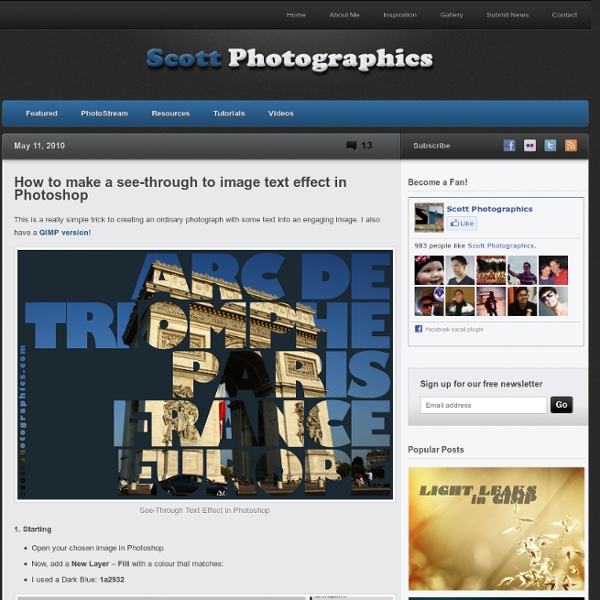
Photoshop CS4: A Picture Worth a Thousand Words I love Photoshop techniques that offer all kinds of possibilities for experimentation—and the following tutorial is a perfect example of one of those techniques. In this issue, we’re going to take a portrait and replace the person’s image with text (think 2009 Grammy posters). Pick a portrait that offers good contrast—a photo that’s very dramatic and dark probably won’t work as well. I’ve had the best success with straight-on head and shoulder shots, but again, feel free to experiment with all types of photos. Create a new document (File>New) in a size that’s smaller than your photo: the specifics don’t really matter. Switch back to the photograph. Then, press Command-J (PC: Ctrl-J) to copy the selected pixels onto a new layer. Go back to the Select menu and choose Color Range again. Click the Eye icon next to the Background layer in the Layers panel to hide that layer from view. Click the Create a New Layer icon at the bottom of the Layers panel.
Photoshop Tutorial: Learn Basic Photo Editing to Enhance Colours/Light/Contrast Hi everyone! Here is a tutorial I've been working on for anyone that is new to photo editing. I wanted to show you two very easy ways to dramatically enhance the colours, contrast and light balance in your photos. I work in Photoshop, but I think that the methods I show would be fairly similar in other photo editing software. So, if you look at the image above, you can see how much you can improve photos that come out a bit dull and dark, but this is also a great way to make good shots stand out even more! I am going to use this photo to show you the technique. The first thing I always do with a new photo is to adjust the Levels. When you have opened the Levels window you'll see this black "mountain". Click OK. Now we are going to enhance the contrast further and make the colours really pop. Now you're gonna copy the Background layer, do that by grabbing hold of it and dragging it to the "Create a new layer" icon (bottom right of your layers panel). I hope you enjoyed this tutorial!