

Smooth Vertical or Horizontal Page Scrolling with jQuery In this tutorial we will create a simple smooth scrolling effect with jQuery. We will create a horizontal and a vertical website layout to show the effect. We will be using the jQuery Easing Plugin and just a few lines of jQuery. View demoDownload source In this tutorial we will create a simple smooth scrolling effect with jQuery. So, let’s start! The Markup The markup for our example page is going to be very plain. The HTML is going to be the same for both examples. The CSS Since we have two examples, we will start with the horizontal page style. The main idea is to make the sections very wide and 100% in height. We need to give the body a valid height, because we want to be able to define the height 100% to the section. The style for the vertical page layout is going to look as follows: Nothing special here, just that we give a big height to the sections. Let’s add the JavaScript The JavaScript The function for the horizontal scrolling effect is the following:
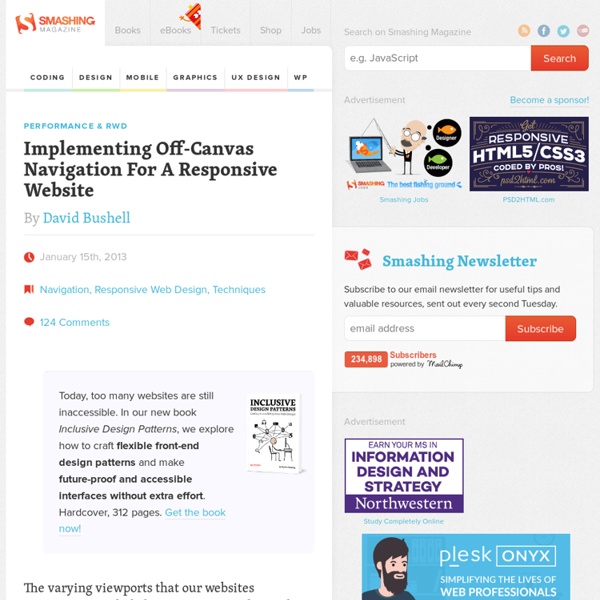
Responsive Navigation Patterns Update: I’ve also written about complex navigation patterns for responsive design. Top and left navigations are typical on large screens, but lack of screen real estate on small screens makes for an interesting challenge. As responsive design becomes more popular, it’s worth looking at the various ways of handling navigation for small screen sizes. Mobile web navigation must strike a balance between quick access to a site’s information and unobtrusiveness. Here’s some of the more popular techniques for handling navigation in responsive designs: There are of course advantages and disadvantages of each method and definitely some things to look out for when choosing what method’s right for your project. Top Nav or “Do Nothing” Approach One of the easiest-to-implement solutions for navigation is to simply keep it at the top. Pros Cons Height issues- Height matters in mobile. Responsive navigation breaking to multiple lines on small screens In the Wild Resources The Select Menu The Toggle In The Wild
Site of the Month | Showcase Site of the Month proposes you to find the best creative work of the month in order to discover new ideas for your inspiration and in order to realize all the possible artistic achievements you can reach using modern techniques and tendencies. Site of the Month -it is a productive result of long-lasting searching and finally found creative godsends and solutions based on the laborious work and reliable experience of previous tasks and ideas. Memorable and outstanding works that open new horizons of creativity are proposed for your kind consideration as a Site of the Month, involving you to another world of materialised dreams that are waiting for your active participation. Site of the Month April 2014 Usability of the Month January 2012 HatBox HatBox is another excellent webpage and I especially like that it\'s responsive without any loss of content. Report Dead Link Animation of the Month
php - output html tags Using Checkboxes to Toggle CSS and Create Click Events More and more lately I’ve seen developers utilizing tricks to create toggle states using pure CSS. This allows you to skip the JavaScript without sacrificing the interaction. How does this work? Is it an acceptable practice? Today we’re going to examine two distinct methods for utilizing a checkbox to create a click event that swaps between two images using good old HTML and CSS. We’ll finish off with a brief discussion on semantics and the pros/cons of this technique. Like Skinning a Cat “You essentially create a checkbox in HTML only to hide it and steal its functionality.” With any CSS trick, there are always a handful of different ways to accomplish the task you’re aiming to achieve. Both methods involve some questionable CSS trickery. The second method makes use of the interesting functionality of labels associated with a checkbox. Let’s dive in and take a closer look at each of these methods. Method 1 This should give you a checkbox next to a big image as seen in the following image.
php - How to display HTML tags as plain text Toggle Buttons Without Javascript - Jeremy Worboys The idea of having a set of buttons that are mutually exclusive (when you select one, all others deselect) or "toggle buttons" is not by any means new. This idea has nearly always been accomplished in the past with JavaScript and its libraries/plugins. What about people who run without JavaScript? The first step is to think about what we are trying to do on the most basic level - from a list of buttons, allow the user to select only one. You can checkout the live fiddle for a demo. The HTML The HTML is fairly straight forward, we create a form and a set of inputs. We also need to make sure you have a label for each input (which I'm sure you're doing anyway) with a for attribute that corresponds to its input's id attribute. Lastly, the label and the input need to sit inside their own container, I have used a div in this example. Something thing to note is the unselectable attribute on each label element. The CSS I have included the basic CSS required to pull off the effect. Conclusion