Video Library. Pull tab card « Emily Things. I am so sorry for the delay in posting this tutorial!

This week has been pretty busy and I know I anticipated having this done Wednesday night…so I hope this allows enough time for some of you who requested a tutorial, to make the cards you wanted in time!!! I can say that this card isn’t too tricky to make. I did the whole thing in about an hour last night. While it looks fancy and complicated, the mechanism is simple. A waterfall pull tab card can be seen in my previous post, Valentine Pop Up Card: Hidden Message, and seen in video action in the post Happy Birthday Waterfall Card. Ok so now the question – how to make this card? 1. 2. 3. Sorry this is so grainy! 4. 5. 6. 7. Little star-shaped brads from Joann’s Fabrics Again, this part below will be covered up by your outside cover of the card in the end. 8. Cut off the excess paper that would hang down below the orange strip. 9.
It might tough to see but there is glue on the tip of the yellow part that I am sliding down in this picture. Design Blog & Portfolio. Illustrative Lettering. Create a Jaguar Style Folder Icon. In this tutorial, we will show you how to cover an object in a Jaguar style fur texture.

In this example, we'll cover a computer folder, but this technique can be used with any other object, like a CD cover, a mouse, or even a computer. Editor's Note:This tutorial was originally published in the Czech language at Grafika Online. Grafikahave kindly given permission for Vaclav to republish here on Psdtuts+ for those of us who haven't quite mastered Czech...
Final Image Preview Before we get started, let's take a look at the image we'll be creating. Introduction Let's look at how this tutorial differs from other icon tuts across the net. This tutorial concept was made some time ago. Step 1 Although we don't need the exact shape of the folder, let's show how to create such a shape. Step 2 We keep doing this until the whole shape is drawn. Step 3 Here is the example of the original drawing, and the new one created with the Pen Tool. Step 4 Step 5 Step 6 Choose it (Ctrl + A). Easy Furry Text in Photoshop. We have been posting tutorials for almost 6 years and our goal here was and will always be trying to share easy techniques we've learned along the way.
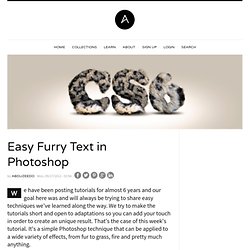
We try to make the tutorials short and open to adaptations so you can add your touch in order to create an unique result. That's the case of this week's tutorial. It's a simple Photoshop technique that can be applied to a wide variety of effects, from fur to grass, fire and pretty much anything. So in this tutorial we will show you how to create a really cool and super simple furry text in Photoshop CS6. We will use basic filters and tools but it's nice to say that we took advantage of the a new feature in Photoshop CS6 that is to apply layer styles to folders. How to create animated gifs from movie files? How to create animated gifs from movie files?

| Convert avi to animated gif This is a guide that I copied from my old wordpress.com blog. Basically, this guide will teach you on how to create animated gifs from movie files? Specifically, this will be a step-by-step guide on how to create animated gifs from avi files. Ok Let’s Start… ::Tools Needed::VirtualDubMod – This program will extract a piece of the video file that we want to convert to an animated gif.GIF Movie Gear – This program will do the converting from avi to gif. Open vdm(virtualdubmod) and open the avi file with it. Original Source Guide Other Search Terms. Learn how to create a sleek portfolio layout with Photoshop CS5. Hello my friends.
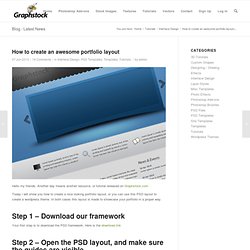
Another day means another resource, or tutorial released on Graphstock.com Today i will show you how to create a nice looking portfolio layout, or you can use this PSD layout to create a wordpress theme. In both cases this layout is made to showcase your portfolio in a proper way. Step 1 – Download our framework Your first step is to download the PSD framework.
Step 2 – Open the PSD layout, and make sure the guides are visible Open the PSD Layout, and with Paint bucket tool fill the background with the following color: #d8d8d8 For your own good is to enable the guides. Step 3 – Create a gritty background Duplicate the background layer and then go to Filter > Noise > Add noise Step 4 – Create the slides how for this portfolio layout Create a big shape in the middle of the layout. These are the layer styles used to create the background of our slideshow Step 5 – Add noise on the slides how background too. Vectortuts+ - Part 22. Tutoriais - Metapix.