
TAASC: Git Hooks Summary / Cheat Sheet. TAASC: Git Hooks Summary / Cheat Sheet. Import - Export subtree in Git with history. Setting up a git repository in XCode for a pre-existing project. Rewriting History. Many times, when working with Git, you may want to revise your commit history for some reason.

One of the great things about Git is that it allows you to make decisions at the last possible moment. You can decide what files go into which commits right before you commit with the staging area, you can decide that you didn’t mean to be working on something yet with the stash command, and you can rewrite commits that already happened so they look like they happened in a different way. This can involve changing the order of the commits, changing messages or modifying files in a commit, squashing together or splitting apart commits, or removing commits entirely — all before you share your work with others.
In this section, you’ll cover how to accomplish these very useful tasks so that you can make your commit history look the way you want before you share it with others. Changing the Last Commit Changing your last commit is probably the most common rewriting of history that you’ll do. To this: Flavored Markdown. GitHub uses "GitHub Flavored Markdown," or GFM, across the site--in issues, comments, and pull requests.

It differs from standard Markdown (SM) in a few significant ways, and adds some additional functionality. If you're not already familiar with Markdown, take a look at Markdown Basics. If you'd like to know more about features that are available in issues, comments, and pull request descriptions, such as task lists, read Writing on GitHub. Git show - List all the files for a commit in Git.
Guides. Fast Version Control System. Welcome to the Git version control system!
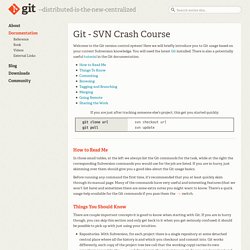
Here we will briefly introduce you to Git usage based on your current Subversion knowledge. You will need the latest Git installed; There is also a potentially useful tutorial in the Git documentation. How to Read Me In those small tables, at the left we always list the Git commands for the task, while at the right the corresponding Subversion commands you would use for the job are listed. If you are in hurry, just skimming over them should give you a good idea about the Git usage basics. Before running any command the first time, it's recommended that you at least quickly skim through its manual page. Workflow: create and init multi-project repositories with EGit (Git) « ekkes-corner: eclipse. This workflow is part of my DVCS blog series.

If you don’t understand some steps, please read the first parts of the series. hint: another great source are Lars Vogel’s EGit tutorials. The goal: Workspace with n Projects in same Git Repository It’s usual that you have to create a new repository containing some projects from inside your eclipse workspace. Here’s the workflow how to do this using EGit. (Eclipse Workspace “n-projects-workspace” contains a Git Repository “n-projects-ws-repo” where two projects (“org.ekkescorner.one” and “org.ekkescorner.two“) are under version control.) The short story: the long story: 1. 1.1 Create the first project (at non-default location) We create a new project, please uncheck “Use default location” and enter your new location: <workspace>/<repository>/<project> This will create your project one level deeper as usual. 1.2 Share the first project (createRepository at parent directory) Option-click on your project “Team -> Share Project…“
Rebase v Merge in Git. When would you use the different git merge strategies. Git Book - The Git Object Model. Git is a content-addressable filesystem. Great. What does that mean? It means that at the core of Git is a simple key-value data store. You can insert any kind of content into it, and it will give you back a key that you can use to retrieve the content again at any time. To demonstrate, you can use the plumbing command hash-object , which takes some data, stores it in your .git directory, and gives you back the key the data is stored as.
. $ mkdir test $ cd test $ git init Initialized empty Git repository in /tmp/test/.git/ $ find .git/objects .git/objects .git/objects/info .git/objects/pack $ find .git/objects -type f $ Git has initialized the objects directory and created pack and info subdirectories in it, but there are no regular files. . $ echo 'test content' | git hash-object -w --stdin d670460b4b4aece5915caf5c68d12f560a9fe3e4 The -w tells hash-object to store the object; otherwise, the command simply tells you what the key would be.