
Share files with Dropbox. Email’s nice for sharing the occasional holiday photo or short story, but what to do when you need to share something more substantial?
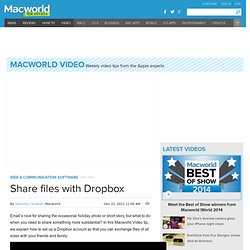
In this Macworld Video tip, we explain how to set up a Dropbox account so that you can exchange files of all sizes with your friends and family. Download Macworld Video #162 • Format: MPEG-4/H.264 • Resolution: 480 x 272 (iPhone & iPod compatible) • Size: 4.1 MB • Length: 1 minute, 56 seconds Show Notes In this video, we use Dropbox's free software and cloud storage service. To subscribe to the Macworld Video stream via iTunes, click here. You can also see a complete archive of all our videos on Macworld’s YouTube channel. Or just point your favorite podcast-savvy RSS reader to: Show Transcript. Three quick iMessage tips. iOS 5 introduced iMessage, a new capability within your iOS device’s Messages app that can send text, picture, and video messages to other iPhones without counting against your carrier’s messaging plan.
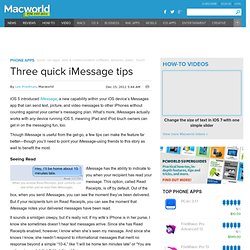
What’s more, iMessages actually works with any device running iOS 5, meaning iPad and iPod touch owners can get in on the messaging fun, too. Though iMessage is useful from the get-go, a few tips can make the feature far better—though you’ll need to point your iMessage-using friends to this story as well to benefit the most. Seeing Read iMessage has the ability to indicate to you when your recipient has read your message. This option, called Read Receipts, is off by default. It sounds a smidgen creepy, but it’s really not. So do the iMessaging community a favor and turn on Read Receipts. Direct Address. Reminders in iOS 5. Posted 10/12/2011 at 12:08pm | by Cory Bohon Since the launch of the first iPhone in 2007, iCal users have been begging for a simpler way to sync their to-do lists from iCal to their devices.
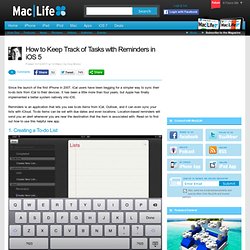
It has been a little more than four years, but Apple has finally implemented a better system natively into iOS. Reminders is an application that lets you see to-do items from iCal, Outlook, and it can even sync your lists with iCloud. To-do items can be set with due dates and even locations. Location-based reminders will send you an alert whenever you are near the destination that the item is associated with. 1. When you first open the application, the Reminders application look familiar to many Apple iOS applications. 2. To add an item to the to-do list that we just created, simply tap on it, and then tap on the plus button in the list. 3. After you have entered an item into your to-do list, you can tap on the item to get the Details pop up dialog. 4. Ipad App Reviews. Apps in Education. How to use the iOS Reminders app. The arrival of iOS 5 last fall brought with it the ability to manage your to-dos in the form of the built-in Reminders app.
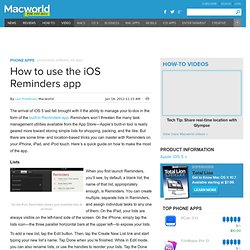
Reminders won’t threaten the many task management utilities available from the App Store—Apple’s built-in tool is really geared more toward storing simple lists for shopping, packing, and the like. But there are some time- and location-based tricks you can master with Reminders on your iPhone, iPad, and iPod touch. Here’s a quick guide on how to make the most of the app. Lists When you first launch Reminders, you’ll see, by default, a blank list; the name of that list, appropriately enough, is Reminders. To add a new list, tap the Edit button. On the iPad, switching between lists is simple: Tap the list name at left, and that list’s contents will immediately appear on the right. iPhone users have a couple of options for list-switching.
Tasks.
How I Use GoodReader. iPad has changed the way I do everything digitally.
The way that I interact with devices, read, write, organize, and get things done. It is engrained into my life and I wouldn’t want to go back to the way I was before without it. One of the apps that have slowly creeped their way into my life is GoodReader for iPad. GoodReader is an app that allows you to read, manage, organize, access, and annotate just about any file that you would want to. It was released as primarily a PDF reader / “annotater” at first, but now hos taken on a life of its own with ways to download files, sync with Dropbox, create, edit, and manage annotations on PDFs, and much more.
Here are a few ways that I use GoodReader to get things done. Syncing documents with Dropbox This is what I use GoodReader for the most and without it, my PDF reading / annotating on iPad wouldn’t exist. Better (paperless) meetings and discussions One of my issues to resolve this year is to make my life more paperless. Signatures Conclusion.