
Windows 8 Preview installation using Network Boot (PXE) I have an older Vaio VGN-A115B laptop with not enough disk space on the system partition (running the setup.exe from the older OS it says it requires 16 GB free, although it will happily install later on a 12 GB partition), a shot DVD drive that couldn’t read a DVD-RW disk with Windows 8 installer and on top of that didn’t seem to power the USB ports at boot, the only option I was left off was to do a network boot (PXE) – something I always wanted to try.

So after two days and a lot of failed attempts, here it is… Somehow I always thought booting through PXE would be easy (just as easy as the USB or DVD boot) – and how wrong I was, as it requires both a DHCP server that allows to specify a boot program and TFTP server, neither of which is easily found on the net (details on Intel Boot Agent). Eventually I did stumble onto TFTPD32/64 and Serva32/64 – both looking fairly similar which is fair enough cause the second is based on code from the first one. A few things to note about my setup.
Build PXE Boot Server for Windows with CCBoot - a Powerful PXE Boot Server Software Based on Windows. Initialize the PXE Boot Server Demo Environment Server IP: 192.168.1.10 Gateway: 192.168.1.1 DNS Address: 192.168.1.1 IP Mask: 255.255.255.0 DHCP Range: 192.168.1.101-192.168.1.254Launch the PXE boot server software - CCBoot, menu "Options" -> "Options Wizard" and configure step by step as bellow: Figure 3 You need to select the correct local IP address as "DHCP Server IP".

Press "Scan DHCP" to check if there are other DHCP services on the LAN. You need to stop other DHCP services on the LAN. Figure 4 Set "Server IP Address". Normally, it’s the same as "DHCP Server IP". Set "Write-back File Path" and "Image Save Path" as you want. " Figure 6 Keep default values in "Other Settings". Serva - Windows PXE Boot/Install without RIS/WDS/WAIK. The objective is to perform simple network installations of Microsoft's OSs neither requiring to follow cryptic procedures nor being dependant on Microsoft’s RIS/WDS/WAIK suites. This how-to considers installations performed on real PCs or virtual environments like i.e. VMware. 0 Index Requirements Definitions Stage Deployment Customization Security Troubleshooting Final Words 1 Requirements. Installer Windows 8 depuis une clé USB. Getting around in Windows 8. A common thread we’ve seen in the feedback so far about Windows 8, on this blog or elsewhere, positive or negative, is that people using Windows 8 for the first time might need a little help getting their bearings.
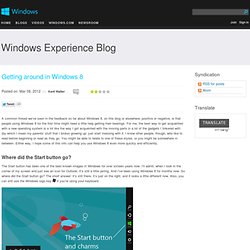
For me, the best way to get acquainted with a new operating system is a lot like the way I got acquainted with the moving parts in a lot of the gadgets I tinkered with (by which I mean my parents’ stuff that I broke) growing up: just start messing with it. I know other people, though, who like to read before beginning or read as they go. You might be able to relate to one of these styles, or you might be somewhere in between. Either way, I hope some of this info can help you use Windows 8 even more quickly and efficiently. Where did the Start button go? The Start button has been one of the best known images in Windows for over sixteen years now.
If you’re using your keyboard. But the question isn’t just where the Start button went. The Search and Settings charms The app bar. Importer un calendrier ou s'abonner à un calendrier - Importer un calendrier ou s'abonner à un calendrier. Export Windows Live Calender. Hear, hear!

Did without Outlook for what seems eons, and "progressed" from a multitude of OE versions to Windows Mail (Vista) to WLM. Have found WLM unacceptable and want out. Finally broke down and purchased Outlook. Plan come heck or high water to move everything from disparate computers and software platforms to Outlook and stick with that until... primarily to "standardize" contacts and calendars and to use Windows Mobile version-whatever to sync with smartphone - for which I'm too cheap and refuse to pay extra to surf the internet.
My $0.02, possibly of no value to anyone else. "AGL" <AGL@xxxxxx> wrote in message news:71A3EA34-D337-4A31-9850-68321C5C9F82@xxxxxx. #202 Sauvegarder les messages d'un compte webmail vers un autre. Est un outil vous permettant de copier,migrer vos mails d’un compte IMAP à un autre. Ainsi, si vous souhaitez changer de webmail par exemple (GMail, Yahoo, Hotmail, AOL…), vous pourrez exporter tous vos dossiers et mails vers le nouveau, sans perdre aucun message important. Le programme sera aussi utile pour effectuer un backup de vos mails importants vers un autre compte. Voyons ensemble le fonctionnement de ce logiciel. Tout d’abord votre compte de messagerie doit être . Une petite définition s’impose sur les différents protocoles de messagerie : Internet Message Access Protocol (IMAP) est un protocole utilisé par les serveurs de messagerie électronique, fonctionnant pour la réception.Ce protocole permet de laisser les e-mails sur le serveur dans le but de pouvoir les consulter de différents clients e-mails ou webmail.
Create PDFs Very Easily with dopdf. Wondering how to create your pdf’s and trying to go for a paid version .Take a look at this excellent freeware ,dopdf,which creates pdfs very easily.dopdfdoPDF is a free PDF converter for both personal and commercial use.

Using doPDF you can create PDF files by selecting the “Print” command from virtually any application. With one click you can convert your Microsoft Excel, Word or PowerPoint documents or your emails and favorite web sites to PDF files. dopdf installs itself as a virtual printer driver,you can find this in printers and Faxes list.when you go to print a document you have to select file menu and click print and you have to choose dopdf as a printer in list of printers you have connected to your system, click o.k ,it wiill ask where to save the pdf ,the pdf will be opened with default viewer for example with adobe reader.
Setting Your Default Browser in Windows. As these days we are using lot of browsers like Internet explorer,Firefox,Safari .Google Chrome and Opera.

As we can expect there should be minimum three browsers are used by the browser one Internet Explorer ,Firefox and safari or Chrome or Opera After Installing lot of browsers and we get used to them it will be difficult to know which is set as default browser and how to set the default browser in windows. Suppose I am considering here a user has Internet explorer,Firefox,safari and Gogole chrome are there . Checking and setting Default Browser Suppose to check whether FIrefox is default Browser :Open Firefox Click Tools Options and click advanced and in the system defaults click check now and it displays if it is already set as default it says firefox is already set as your default Browser.
How To Print List of Installed Programs In Your Computer. This will be very useful for all computer users ,they install so many programs and if you want to install your OS freshly so that you need list of installed applications .It is hard to remember all programs we installed ,so it is better to keep a copy of printout of installed programs as we can install them very easily after reinstalling.

To print list of Installed Programs in your Computer: Let us see the ways we can print the list of installed programs.This will be very use If you have followed our previous articles of Belarc Advisor ,SIW .If you don’t have them download them to your PC from our posts.We also need PDF writer like dopdf you can argue why we can’t save data to MS Word it’s your wish.There is no logic behind this as these System Info programs they also give the report of software installed.
Printing list of installed Programs from Belarc Advisor: After you open the Belarc Advisor it creates a profile for your computer in a webpage.in your Default Browser . Related Posts: CCleaner With Google Chrome Support Released. Get Detailed Info of Your PC With Free Belarc Advisor. Belarc Advisor gives detailed information of your PC report in a browser.It lists installed software,hardware,missed Microsoft hot fixes,current status of your Anti-Virus whether it is in updated condition or not.

Profile Generated by Belarc Advisor includes: Motherboard Model,Processor Info, memory of Ram modules installed,hard drive capacity and partitions you are using.Audio,Display drivers info.this will be very helpful to find drivers for your motherboardMissed hot fixes of Microsoft and lists available Microsoft hot fixes for your computer.