
25 Things I did After Installing Ubuntu 12.04 LTS "Precise Pangolin" Ubuntu 12.04 LTS "Precise Pangolin" is proving everyone wrong.
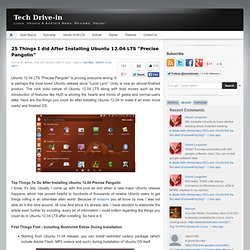
It is perhaps the most loved Ubuntu release since "Lucid Lynx". Unity is now an almost-finished product. The rock solid nature of Ubuntu 12.04 LTS along with bold moves such as the introduction of features like HUD is winning the hearts and minds of geeks and normal-users alike. Here are the things you could do after installing Ubuntu 12.04 to make it an even more useful and finished OS. 11.10 - How do I enable NTFS write support. Overview. Here is a summary of all the commands you have learned so far and some additional commands that are useful. echo arguments return working directory name [ dir ] change working directory list names of all files (except hidden files) in current directory [ file ...] list only named files -a list all files including hidden files (i.e. those starting with ``.'') -t list in time order, most recent first -l list files in long format.

No Title. Could not apply stored configuration for monitors. Linux How-To Articles, Tips, and Guides. How to Change the Ubuntu Linux Login Screen. Want to change your login screen?

Don’t know how? You might think it’s very hard and requires super-geeky skills but it’s really simple and you won’t believe how easy it is to do it. Keep reading for the easy instructions. Change the Login Screen the Best Way Using this method you can customize every aspect of your login screen. Sudo cp /usr/share/applications/gnome-appearance-properties.desktop /usr/share/gdm/autostart/LoginWindow Now logout and you’ll see an Appearance window pop up. When finished, close it and login as usual. Sudo unlink /usr/share/gdm/autostart/LoginWindow/gnome-appearance-properties.desktop A good idea is to use the Bisigi Themes. Now your login screen has been completely customized. Change the Login Screen the Easiest Way: This method requires Ubuntu Tweak to be installed. Sudo add-apt-repository ppa:tualatrix/ppasudo apt-get updatesudo apt-get install ubuntu-tweak Once installed, you can find Ubuntu Tweak in the Applications > System Tools menu.
Disable the Global Menu (AppMenu) in Ubuntu 11.04 and 11.10. As of Ubuntu 11.04, a new feature was added, called the Global Menu, which is a common menu bar shared by all applications (shown above).

Most of us have been used to each application window having its own menu bar. The Global Menu is available on the top panel on the Unity desktop, no matter where the application window is. If you have an application window resized to be small in the lower, right corner of your screen, the menu bar for that application is still on the top panel. This can be confusing and uncomfortable if you are not used to it. If you don’t like the new Global Menu and want to move the menu bars back to each respective application window, we’ll show you how to disable the Global Menu.
Press Ctrl + Alt + T to open a Terminal window. Easily Install Windows Games & Software on Linux with PlayOnLinux. PlayOnLinux provides a point-and-click interface to automatically install and tweak Windows software on Linux.

It’s like a package manager — but for Windows games and other applications on Linux. We’ve covered using Wine to run Windows software on Ubuntu and other Linux distributions in the past. PlayOnLinux automates this tedious process for the applications it supports. It provides a list of applications you can install and automates each installation process as much as possible. Installation PlayOnLinux is in Ubuntu’s software repositories, so you can grab it from the Ubuntu Software Center or install it with the following command: sudo apt-get install playonlinux If you want the latest version, you can download it from the PlayOnLinux website. If you want to keep up-to-date with the latest version, run the four commands on the page to add the PlayOnLinux software repository to your system. PlayonLinux uses Wine as its backend. Getting Started Installing Applications Wine Versions. 173756 : Questions : “update-manager” package. Live.linux-gamers.net. Ubuntu. Unity Linux.