
background preloader

Kuva

Facebook Twitter

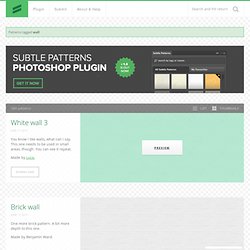
Kuvien copyright. FlashFace - kasvoluonnoksia. Haiku Deck. Subtle Patterns | Free textures. You know I like walls, what can I say. This one needs to be used in small areas, though. You can see it repeat. Made by Luca. Download One more brick pattern. Made by Benjamin Ward. Download A huge one at 800x600px. Made by Atle Mo. Download If you’re sick of the fancy 3d, grunge and noisy patterns, take a look at this flat 2d brick wall. Made by Listvetra. Download I guess this is inspired by the city of Ravenna in Italy and it’s stone walls. Made by Sentel. Download Old concrete wall in light shades. Made by Bartosz Kaszubowski. Download High detail stone wall with minor cracks and specks. Made by Projecteightyfive Download.
Ilmaisia valokuvia

Search Vintage Ad Browser. Results 21 - 30 of 581 : The Allies are Burying Germany with the Versailles Terms Germans Warned off Buying French and Belgian Goods During the Occupation Berlin, Germany – Konkurrenz-Fliegen Airfield Promotional Poster German Circus with Horse and Elephant Hybrid WWI, German Kriegsmarine Destroyer 1 | 2 | 3 | 4 | 5 | 6 | 7 | 8 | ... | 58 | 59 » next page.

YouTube Photo Slideshow. Animoto is an excellent tool for creating audio slideshows. But there are some limitations to it that some teachers don't like. Most notable of those limitations is the time limit (30 seconds unless you get an Animoto for Education account), lack of space for text, and that students have to remember a username and password to use it.

The YouTube slideshow tool provides a tool for creating audio slideshows without those three limitations of Animoto. YouTube Photo Slideshows don't have a time limit other than the standard 15 minute limit applied to all new YouTube accounts (there are work-arounds for this). The images below show you how to create a Photo Slideshow on YouTube. Step 1: Log into your YouTube account and click "upload" then click "Photo Slideshow. " Step 2: Select images from your Google Account or upload images from your computer. Step 3: Drag and drop your images into the sequence in which you want them to appear. Step 5: Enter a title, description, and tags for your images. ThingLink. 26+ Ways to Use Thinglink. Commons.

Ipad icons. PicLit.