
Survival PDF Manuals. How to solve the 10 most common tech support problems yourself. Whether you’re dealing with your dad’s decade-old computer or your own custom-built gaming rig, troubleshooting PC problems is a part of everyday life.

Before you make that $50 support call, though, try your hand at homebrew tech support. We spoke to some of the best support reps in the business about the most common problems they fix—and how you can do it yourself. Try this first I know it sounds like a no-brainer, but before you do anything else, restart your computer. Matthew Petrie of Falcon Northwest technical support says that most of his customers solve their problems with this simple step. The complete list of Windows Logo keyboard shortcuts. When it comes to keyboard shortcuts in Microsoft Windows 7, I admit to being a bit of a novice.
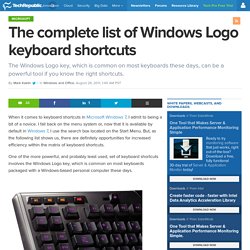
I fall back on the menu system or, now that it is available by default in Windows 7, I use the search box located on the Start Menu. But, as the following list shows us, there are definitely opportunities for increased efficiency within the matrix of keyboard shortcuts. One of the more powerful, and probably least used, set of keyboard shortcuts involves the Windows Logo key, which is common on most keyboards packaged with a Windows-based personal computer these days. Table A lists the keyboard shortcut combinations associated with the Windows Logo key and what each combination will do. Take a good look, because there may be a key combination or two you can use regularly that will make your computing life just a little more efficient.
Table A - Source Microsoft Also read: Mark W. How to create a new user account in Windows 7 and Windows Vista. Windows 7 and Windows Vista allows you to have multiple users sharing the same computer under their own individual accounts.

This allows each individual user to have their own location on the computer where they can store their personal documents, pictures, videos, saved games, and other personal data. This also allows the owner of the computer to assign certain accounts the ability to perform administrative tasks like installing software, while limiting other user's abilities.
Enable Prefetcher for Faster Windows 7 Performance. Windows 7: Change logon background. Bored with your windows 7′s default logon screen?

Here’s the quick way to change it! Before we start, make sure your picture is in .jpg format and it must be smaller than 256kb. Be careful to pay attention to the different directions based on which Windows 7 system you have. There are combined instructions for both systems at the bottom of the article. 19 Tips Every Windows 7 User Needs to Know - Page 5. How to load Windows 7 onto a bootable USB key To complete your Windows 7 power-user experience, you may consider dropping the whole darn OS onto a USB drive.
Whether you carry it around in your pocket or toss it in a desk drawer, it’s a perfect boot disk for emergency installs—including those times when you’re working with a netbook or some other computer that lacks an optical drive. Even better, your install times will be significantly reduced, thanks to your key’s flash memory—we shaved off minutes from our total install time.
Here’s how to create a schmancy-fancy boot key for either Windows 7 or Vista—but not for other OSes, so please don’t try! We’ve run a truncated version of this article in the magazine before, but because it was so incredibly popular—and so germane to this feature story—we’ve decided to share it again, this time with more detail and screens. 1. Plug in your USB key and back up any existing data stored on it. 2. Open up a command prompt as an Administrator. 3. 4. 15 Free Windows 7 Tweaking Tools. Users who have been following us for quite a while know that we have reviewed several free Windows 7 tweaking tools.

As Windows 7 RTM has replaced XP and Vista on many PCs already, it’s time to showcase all the Windows 7 tweaking tools that will help you get most out of Windows 7. In no particular order, following are the free tweaking utilities available for Windows 7. 1. The 32 Totally Essential (and Free) Apps for Every New PC. You have to admit, Windows is a pretty barebones operating system, feature-wise.
After a fresh install of XP or Vista (perhaps following a Clean Start), you're faced with a barren Start Menu and an empty desktop that's beaming with limitless potential. The problem is that it's up to you to hunt and download those applications that you really need in your day-to-day computing experience. And chances are, it's often difficult to find good software that's also free.
That's where this guide comes in. We've put together a list of what we think are the most essential PC apps for every Maximum PC reader. And at the end of the feature, we'll even show you how to install these apps in one fell swoop with a special configuration file we've created. WinDirStat Have you ever sorted a folder by file size, hoping to track down a hard disk hog, only to be frustrated by the fact that Windows doesn’t let you see the size of nested folders’ contents?
AnyDVD. The 50 Best Registry Hacks that Make Windows Better. We’re big fans of hacking the Windows Registry around here, and we’ve got one of the biggest collections of registry hacks you’ll find.
Optimize Windows 7 for better performance. Autoruns. Why does logon take so long?
What are all those icons in the system tray? How do I stop programs from starting automatically? How do I get rid of that strange error that keeps cropping up during logon? You've probably heard these questions plenty of times, especially from Windows users who are working on new systems that came preloaded with applications or on older systems on which they've installed numerous programs over time.
This month, I'm taking a break from writing about the tools in the Systinternals PsTools suite to discuss a free tool that can answer those questions: Sysinternals Autoruns. See also, "Managing Autorun Applications" and "Using Autoruns to Determine Which Programs Automatically Run at System Startup. " Upon installation, many applications configure themselves to start automatically when you log on.