
Design a Web 2.0 tab with Photoshop. The follow guide below attempts to give you an idea how to design a nice sleek tab menu in Photoshop, Web 2.0 style.

Step 1 Create a new canvas with white[#ffffff] background at any size you like, preferably rectangular; they are more suitable to draw tabs. Then switch to Channels Tab (Windows -> Channels), click Create new channel on bottom right. Step 2 On the channel layer selected, draw similar shape with Polygonal Lasso tool.
Step 3 CTRL-L to call up the Level Dialog and push the left and right arrow to meet the center arrow, like the image above. Step 4 In Channels Tab, Hold CTRL, click on Channel Thumbnail of layer Alpha 1. Step 5 Remove rounded corners for bot bottom left and bottom right, move it towards the left and position it as illustrated above. Step 6 Create a new layer; Select Rounded rectangular Tool (Radius 8px), draw a rectangular and put this layer behind the black tab layer. Drop Shadow Opacity: 31% Distance: 0px Spread: 0% Size: 2px Bevel and Emboss Gradiant Overlay.
Personal Site Layout. April 20th, 2007 by ART-D Posted in Adobe Photoshop, Web Layout In this tutorial you will learn how to create a web layout for persoanl site.

We shall begin by opening a new file of 800×800 px and 72 dpi and then apply the Rectangle Tool (U) to represent the background of the next site. The layer’s parameters may be set by marking out one layer and clicking on it on the right mouse’s button.Blending Options>Gradient Overlay Gradient’s parameters: Create a new layer now and select the Brush Tool (B) from a standard set of brushes clicking on the right mouse’s button on the picture (the color is 98B660). Choose now the Rounded Rectangle Tool (U) and represent the primary layer, reserved for the site’s panel, but we have to delete a top from the upper part and from the left bottom (Delete Anchior Point Tool) The layer’s parameters:Blending Options>Gradient Overlay Post Pages: 1 2 3 4 5 6 7 8. How to Create a Simple & Sleek Web 2.0 Site Footer. Since Web 2.0 hit the internet, footers have become more important than ever, and there has been some great looking work done downstairs.

In this tutorial I'll show you how to produce a sleek looking site footer in Photoshop. The Footer Here's the footer we'll be creating, click on the shot below to see the full size version: Step 1 Along with liquid headers and footers, gradients are a common hallmark of Web 2.0 style design. Step 2 Open your new Photoshop file.
Choose a background color, in my case the choice for background is a simple gradient with #b0b0b0 and #e1e1e1. Step 3 In web design it's very important to decide what kind of layout you are going to be creating. Use guides to delineate the size of your website as shown below. Step 4 Although our footer is a fixed width, we still want the footer to stretch out across the page and fill out the remaining area. Now open a new file with 1440px for width and 86px for height, and go to Edit > Fill and pick the pattern we just created. Create a Nature Inspired Painted Background in Photoshop. When I first saw the Viget Inspire Blog, I was very impressed.
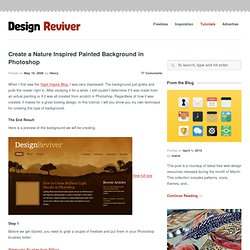
The background just grabs and pulls the reader right in. After studying it for a while, I still couldn’t determine if it was made from an actual painting or if it was all created from scratch in Photoshop. Regardless of how it was created, it makes for a great looking design. In this tutorial, I will you show you my own technique for creating this type of background. The End Result Here is a preview of the background we will be creating. View full size Step 1 Before we get started, you need to grab a couple of freebies and put them in your Photoshop brushes folder: Watercolor Brushes from BittboxComplete Tree Brush Pack from Brusheezy Since we are designing for the web with a target resolution of 1024px wide, lets open a new document and set the width to 1100px and the height to 900px. First we need to decide what our painting will consist of and what our color scheme will be.
Step 2 Now it’s time to start painting.