
Jquery.Threesixty 0.4. Back to my personal site and resume Hi, my name is Mathieu and I do javascript development and jQuery plugins.

You are probably reading this page because of your interest in jQuery threesixty. If you'd like to hire me for a private development or to extend this one, feel free to visit my main site and contact me. Demos Method mouvemove (cycle:3), direction:"backward" Method click (cycle:1, resetMargin:10) Method auto (autoscrollspeed:100) Usage Features method... can be "click", "mousemove" or "auto" sensibility to adjust rotation speed autoscrollspeed to adjust the speed when method "auto" is selected (lower number gives faster rotation) when method is "click" parameter resetMargin indicates a frame thick of n pixels inside the image.
How-to report an issue Please use github issue tracker Comments matdumsa _at! Donation Donations are always appreciated, if you would like to request a new feature, please write it in the donation form. Create a 3D Glossy Box Logo in Photoshop. Step 1 – Creating the Background Choosing colors for a background is important because it will influence how your image stands out.
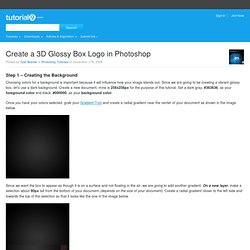
Since we are going to be creating a vibrant glossy box, let’s use a dark background. Create a new document, mine is 256x256px for the purpose of this tutorial. Set a dark gray, #363636, as your foreground color and black, #000000, as your background color. Once you have your colors selected, grab your Gradient Tool and create a radial gradient near the center of your document as shown in the image below. Since we want the box to appear as though it is on a surface and not floating in the air, we are going to add another gradient. Step 2 – Creating the Box Now that we have our background, we need to create our actual box. Since we want our box to have some perspective, we are going to need to transform it by going to Edit > Transform > Perspective.
Now that we have the right shape, let’s change the color. 3D Pixel Stretch Effects in Photoshop. Stretching a single line of pixels is an easy way to create special digital effects in graphic design.
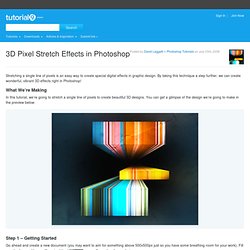
By taking this technique a step further, we can create wonderful, vibrant 3D effects right in Photoshop! What We’re Making In this tutorial, we’re going to stretch a single line of pixels to create beautiful 3D designs. You can get a glimpse of the design we’re going to make in the preview below: Step 1 – Getting Started Go ahead and create a new document (you may want to aim for something above 500x500px just so you have some breathing room for your work). 3D-box maker » 3d-box & package on-line for free.