
Online teaching tools and resources for teachers on WizIQ. Easy-to-use for any number of attendees without the hassle of downloading software.

WizIQ works using Flash technology with a familiar browser-like tabbed interface and standard keyboard shortcuts. This means that if you can view a web page, you can present or attend a live class. Live audio and video chat equal the best results for students and teachers. WizIQ's online tutoring software allows live video streams for up to 6 people via VoIP, seamless audio chat for multiple people simultaneously, full screen video, and the ability to control audio/video for all attendees.
Share most commonly used file types PDF, Word/PowerPoint/Excel documents, video and audio files; also share whiteboards, desktop and more from inside the online teaching software. With WizIQ's online tutoring software, record everything while transforming learning. Learn English vocabulary and spelling at home with award-winning educational technology. Virtual Classroom Comparison Datasheet.
Making Online Quizzes with Google Docs - Grading Quizzes. For teachers, grading quiz results for papers manually is definitely a hard job.
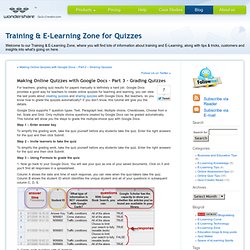
Google Docs provides a good way for teachers to create online quizzes for teaching and learning, you can view the last posts about creating quizzes and sharing quizzes with Google Docs. But teachers, do you know how to grade the quizzes automatically? If you don’t know, this tutorial will give you the details. Google Docs supports 7 question types: Text, Paragraph text, Multiple choice, Checkboxes, Choose from a list, Scale and Grid.
Only multiple choice questions created by Google Docs can be graded automatically. Step 1 – Enter answer key To simplify the grading work, take the quiz yourself before any students take the quiz. Step 2 – Invite learners to take the quiz Step 3 – Using Formula to grade the quiz 1. Column A shows the date and time of each response, you can view when the quiz-takers take the quiz. 2. Otherwise_value – the value that is displayed if then_value is false. Docs. Nicenet. Internet4Classrooms - Helping Students, Teachers and Parents Use the Internet Effectively. Blooms Taxonomy with Apps. Response to Intervention.
Ideas for teaching students successfully in elluminate – a virtual classroom. As our two pre-service teachers, enter their virtual placement week, it is necessary to have as much scaffolding in place for them.

They will be teaching a variety of year levels and age groups – from 13 years through to 17 years of age, using a number of tools, but mostly elluminate. Therefore, it is time to reflect on what they need to do before their online class, during the class and finalizing class and have a running sheet set up for them, to use as a guideling. Following are some tips and hints on teaching successfully.
What has been left out? How could it be improved? Planning for the lesson Book an elluminate roomOrganise your powerpoint slidesWork out features required:- polling,media, app sharing, breakout rooms. Prior to lesson Enter room, test audio. During the lesson Disciplinary actions To assess student progress during the lesson To complete the lesson Finalizing the session Enjoy virtual teaching! Like this: Like Loading... 7 – Kerpoof – Get Your Creative Juices Flowing!
This is the 7th post in the “30 days to using the best of the web’s free tools for educators” series.

Be sure to subscribe to the Teacher Challenge blog by RSS, like us on facebook, and follow us on twitter to keep up with future challenge posts as they are published. Objectives: Teachers will be able to create an account for themselves and their classes to enjoy the many creative features of the program. Lesson plans, help, and standards are easily found throughout the site. They will be able to see their students’ products with a touch of a button. Overview: 1. Click the Question Mark to: Make a Movie Learn how to make a movie using Kerpoof Animation Studio. Make a Picture Learn how to use the Kerpoof Picture Maker to create fantastic art.
Browse: 2. Click the red apple to find: 3. Make a Picture Check out this great lesson plan! Students can choose a background and add items to their page by spelling words correctly. Make a Movie Lesson plan example.
Getting started.