
Demos: Grayscale Hover Effect with HTML5 canvas and jQuery. Accordion with CSS3. Using hidden inputs and labels, we will create a CSS-only accordion that will animate the content areas on opening and closing.
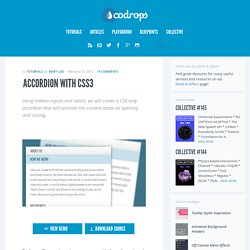
View demo Download source Today we’ll experiment some more with the adjacent and general sibling combinator and the :checked pseudo-class. Using hidden inputs and labels, we will create an accordion that will animate the content areas on opening and closing. There are many variations of CSS-only accordions around, most of which are implemented using the :target pseudo-class. The problem with using :target is that we can’t really close the content areas again or have multiple sections open at the same time. So, let start! Please note: the result of this tutorial will only work as intended in browsers that support the CSS3 properties in use. The Markup We will be going through an example that uses checkboxes where one content section is open by default (the input needs to be ‘checked’). Let’s have a look at the style. The CSS On hover, we’ll make the label white: Demos.
Orman Clark’s Vertical Navigation Menu: The CSS3 Version. Next in the Orman Clark's coded PSD series is his awesome looking Vertical Navigation Menu.
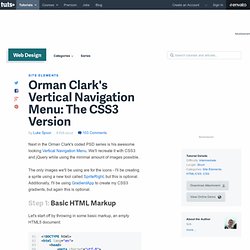
We'll recreate it with CSS3 and jQuery while using the minimal amount of images possible. The only images we'll be using are for the icons - I'll be creating a sprite using a new tool called SpriteRight, but this is optional. Additionally, I'll be using GradientApp to create my CSS3 gradients, but again this is optional. Step 1: Basic HTML Markup Let's start off by throwing in some basic markup, an empty HTML5 document: And now the markup for our menu; an unordered list within a containing wrapper. Lastly, we create the submenus by placing an unordered list nested within each of our existing list items. Okay, there may seem a lot there but don't let it confuse you. I've also added a class to each list item, just so it'll make styling easier later on. Step 2: Fluid Fonts We'll first make sure our menu displays correctly.
Now to explain how the wrapper font size works. Amazing Hover Effects with CSS3. I have received a lot of questions lately about hover effects and how you can execute them using only CSS.

There was a time when you would have to use jQuery to really make your effect stand out, but now CSS3 has some pretty amazing properties that help designers create some lightweight effects that truly stand out. Box Shadow This effect will create a shadow around your div container when you hover over it: Ut vulputate sem venenatis magna commodo ac semper nibh mollis. Pellentesque suscipit metus non lacus lacinia sed porttitor metus suscipit. That one’s pretty simple and straightforward, but still kind of cool. Opacity Having something fade in on a hover can be seen almost anywhere on the web. If you want to create an even cooler opacity fade effect, you can take advantage of the new transition property. (this one only works in Chrome or Safari) The Switch and/or Reveal I have seen a lot of sites use an effect where something is revealed when you hover over an element.
Position. How To Create a Pure CSS Dropdown Menu. With the help of some advanced selectors a dropdown menu can be easily created with CSS.
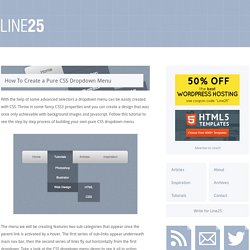
Throw in some fancy CSS3 properties and you can create a design that was once only achievable with background images and Javascript. Follow this tutorial to see the step by step process of building your own pure CSS dropdown menu. The menu we will be creating features two sub categories that appear once the parent link is activated by a hover. The first series of sub-links appear underneath main nav bar, then the second series of links fly out horizontally from the first dropdown. Take a look at the CSS dropdown menu demo to see it all in action. View the pure CSS dropdown menu demo <nav><ul><li><a href="#">Home</a></li><li><a href="#">Tutorials</a></li><li><a href="#">Articles</a></li><li><a href="#">Inspiration</a></li></ul></nav> First up we’ll need to create the HTML structure for our CSS menu. The secondary sub-menu is nested under the “Web Design” option of the first sub-menu.