Jamestonbradley. The previous post explained how to install XBMC (OpenElec) on a Raspberry Pi.

This post explains the simplest way to enable plug-ins in XBMC. Plug-ins are also called add-ons. The next posts will focus on the most popular XBMC plug-ins for UK TV. These are: the iPlayer plug-ins such as BBC iPlayerTVCatchupFilmon There are two stages to setting up a plug-in, first installing and then enabling. XBMC comes with a number of video plug-ins already installed but not enabled and so you can practise with one of those.
After practising in Part 1, Part 2 will explain how to do a full UK TV add-on installation, starting with BBC iPlayer. These instructions apply to any XBMC version, including Windows, Linux and Android. If you are running XBMC on the same PC used to read these instructions, you will want to switch between these instructions and the XBMC screen. How to Watch Premier League Football Using XBMC Kodi. Share this post There are plenty of ways you can watch the footie using XBMC.

Use my links below and you will find a channel to watch; with a good stream too, I can pretty much guarantee it. If you have any good sources that are not listed here then please feel free to share them so everyone else can benefit from it. The best place for games is probably NBC Sports as it shows every Premier League match.
OwnCloud.org. Running a lightweight webserver on the Raspberry Pi (lighttpd) - Linux tutorial from PenguinTutor. This guide covers setting up a light webserver on Linux using the lighttpd web server on the Raspberry Pi.

Most of these instructions can also be applied to other Debian or Ubuntu based distributions (except the tasks using the raspi-config tool). I've already written a tutorial based on the "full-fat" Apache webserver (running a LAMP Apache based webserver on the Raspberry Pi). Lighttpd provides a way of setting up a web server without putting too much load on the limited processing capability.
No-ip and Raspberry PI running wheezy raspbian. How to Clone Raspberry Pi SD Cards Using the Command Line in OS X - Tuts+ Mac Computer Skills Article. The Raspberry Pi runs from an operating system stored on a Secure Digital (SD) card and many different operating systems may be employed.
Storage is relatively inexpensive, can be created (flashed), recreated, written to and overwritten with ease. On the one hand, this is an advantage of the Pi. On the other, the experimental nature of the Pi means more time flashing SD cards. This tutorial shows you how to use a Mac to clone any Raspberry Pi SD card which is particularly useful when you have your OS set up just as you want it. The Raspberry Pi is somewhat different to the computing, to which most of us have been accustomed, of the last two decades.
With almost two and a half million units sold–in little over a year since its launch–and with its focus on getting kids (adults?) Being able to experiment, play and break things is all part of the fun. SqueezeSync. SqueezePlug. Linux : How to run a command when boots up? Other distribution provided the file called /etc/rc.local but Debian does not use rc.local to customize the boot process.
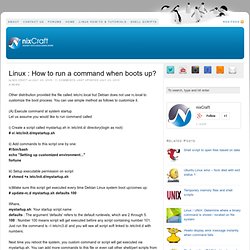
You can use simple method as follows to customize it. (A) Execute command at system startup Let us assume you would like to run command called i) Create a script called mystartup.sh in /etc/init.d/ directory(login as root) # vi /etc/init.d/mystartup.sh ii) Add commands to this script one by one: #! /bin/bash echo "Setting up customized environment... " fortune iii) Setup executable permission on script: # chmod +x /etc/init.d/mystartup.sh iv)Make sure this script get executed every time Debian Linux system boot up/comes up: # update-rc.d mystartup.sh defaults 100 Where, mystartup.sh: Your startup script name defaults : The argument 'defaults' refers to the default runlevels, which are 2 through 5. 100 : Number 100 means script will get executed before any script containing number 101. Raspberry Pi - Dynamic DNS on Raspbian. Greetings all, So as I’ve been setting up my Pi as a home server I thought it might be nice to be able to access it from the outside world.

Unfortunately I only have a dynamically assigned IP address from my ISP so it’s therefore subject to change from time to time. Dynamic DNS will allow me to have a static (non-changing) domain name that will resolve to my occasionally changing home IP address. This works by having a script or daemon in our case running on the internal machine that talks to the DNS server updating the IP resolution address.
In this article I won’t cover any services that can be accessed from the outside such as an HTTP daemon or SSH but I will hopefully discuss these in later posts. Turn a Raspberry Pi Into an XBMC Media Center in Under 30 Minutes. RPi SD cards. SD cards The SD card is a key part of the Raspberry Pi; it provides the initial storage for the Operating System and files.
Storage can be extended through many types of USB connected peripherals. When the Raspberry Pi is 'switched on', i.e. connected to a power supply, a special piece of code called the bootloader is executed, which reads more special code from the SD card that is used to start up the Raspberry Pi. If there is no SD card inserted, it will not start. Web server setup. My operating system, Debian Linux comes with lots of great programs, all of which are free to install and use.

One of the things I am really good at is hosting webpages, but before I can do this I needed to install some web server software.There are many different web server programs available but I decided to use the most common one, it's called Apache and it powers millions of web sites all over the world. So, this is how I set myself up to be a web server. First I needed to install the Apache software, this is the easy bit, I just ran the following command from my command prompt: sudo apt-get install apache2. Raspbian on SD card + USB memory stick. Raspbian is a Debian based Linux distribution, specifically for use with the Raspberry Pi.

The Raspberry Pi requires that the system is initially booted of SD. Because of this, a default install of Raspbian requires an SD card of at least 2gb. I received my Raspberry Pi the other day, and didn’t have a spare 2gb SD card that wasn’t already being used, but I had a few smaller ones around the place (128mb, 256mb, etc). I wanted to find a way to utilize one of these smaller SD cards just for the system boot files, and then run the main system off a USB memory stick. It turns out that the Raspbian image contains a boot partition, and as long as you can copy this to a SD card (and modify the cmdline.txt file to point to the root partition on the USB memory stick), you will be able to initially boot of a small SD card, then load the rest of the system off a larger USB memory stick. Requirements: