
Port Forwarding Ekiga on the Netgear DG834G. What is Port Forwarding?

If you don't know what Port Forwarding is yet, you might want to start by reading our What is Port Forwarding guide. View Netgear DG834G Router Screenshots from our Database You might also be interested in our huge collection of Router Screenshots where you can see every page of every router that we know of. Before Forwarding a Port Setup a Static IP Address To setup port forwarding on the Netgear DG834G router your computer needs to have a static IP address. Either try our free program that will setup a static IP address for you called PF Setup Static IP.Or follow our Static IP Address guide to setup a static IP address.
Now that you have setup a Static IP Address on your computer, please enter the IP address that you assigned to your computer here: 192.168.0. <-- Don't Skip This Step! Login to the Netgear DG834G Router Now we need to know your routers IP address. How To Find Your Netgear DG834G Router IP Address Login To The Netgear DG834G Router Using Your Web Browser. Open Port Check. To Test If Your Port Is Open Download our PFPortCheck ProgramInstall PFPortCheckRun PFPortCheck.
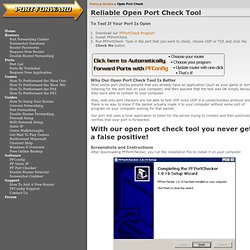
Type in the port that you want to check, choose UDP or TCP, and click the Check Me button Why Our Open Port Check Tool Is Better Most online port checks assume that you already have an application (such as your game or torrent) listening for the port test on your computer, and then assume that the test was OK simply because they were able to connect to your computer. Also, web only port checkers are not able to test UDP since UDP is a connectionless protocol and there is no way to know if the packet actually made it to your computer without some sort of program on your computer waiting for that packet. Our port test uses a local application to listen for the server trying to connect and then positively verifies that your port is forwarded. Screenshots and Instructions After downloading PFPortChecker, you run the installation file to install it on your computer.
NAT and VOIP. What is NAT?

NAT (Network Address Translation) is a technology most commonly used by firewalls and routers to allow multiple devices on a LAN with 'private' IP addresses to share a single public IP address. A private IP address is an address, which can only be addressed from within the LAN, but not from the Internet outside the LAN. In order to let a device with a private IP address communicate with other devices on the Internet, there needs to be a translation between private and public IP addresses at the point where the LAN connects to the Internet, that is within the firewall/router connecting the LAN to the Internet. Such a translation is commonly referred to as NAT (for Network Address Translation) and a router doing such translation is often called a NAT router or NAT firewall/router. Sometimes NAT is also called IP Masquerading. The Trouble with NAT and VOIP At first, for both the calling and the called party everything will appear just fine.
Avoidance Workarounds See also: Enable port forwarding manually - Ekiga. From Ekiga You have come to this page because Ekiga did not manage to configure your network settings automatically.

You can still use Ekiga, but you need to configure your network settings manually. We provide instructions for this here. Ports that are used by Ekiga Your router (often it is part of the ADSL/Broadband modem, or access point) needs to be configured to forward the following ports to your computer. You can find detailed instructions on how to enable port forwarding for your router. Once you have configured your router, restart Ekiga.