
Design an Abstract Splattered Photo Manipulation. Design an Abstract Splattered Photo Manipulation Final Image As always, this is the final image that we’ll be creating: Step 1 Start by creating a document (800X500px).

Create a new layer called ‘background’. Step 2 Paste in your rust texture onto a new layer and resize it to fit your canvas. Now change this layer’s blend mode to ‘multiply’ and reduce it’s opacity to 80%. Apply a hue/saturation adjustment layer. Hue/Saturation Adjustment Layer Settings: Hue: 0 Saturation: -100 Lightness: 0. Reader Tutorial: Mixing Brushes and Layers in Photoshop by Josh Overton. Following our series of Reader Tutorials, Josh Overton, a graphic designer from Bristol UK will show us how to create a really cool design mixing simple layering techniques with custom brushes using Photoshop.

If you want to contribute with your tutorial just let us know, send us a preview via email to abduzeedo@abduzeedo.com Step 1 To start with, open a new document in Photoshop with the dimensions 3508x4961 pixels and a resolution of 300 pixels/inch. Then create a gradient overlay for the background with the colours #778989 and #cbcfce and then angle the gradient at -61 degrees. Step 2 Then using the custom brushes, you can download them here, with the colour #010207 (which is just off black) and setting the flow and opacity down a little you can start to build up something similar to the below image. Step 3 Step 4 Now hide that layer and create a new layer. Step 5 With about 3 different layers for different brushes, build up your base to look similar to this. Playing with Displace Filter in Photoshop. I have been playing a lot with the Displace filter in Photoshop and I still get impressed with how powerful it is.
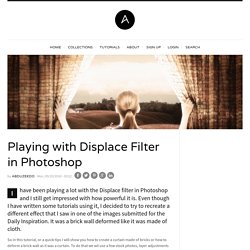
Even though I have written some tutorials using it, I decided to try to recreate a different effect that I saw in one of the images submitted for the Daily Inspiration. It was a brick wall deformed like it was made of cloth. So in this tutorial, or a quick-tips I will show you how to create a curtain made of bricks or how to deform a brick wall as it was a curtain. To do that we wil use a few stock photos, layer adjustments and the Displace filter in Photoshop CS5. The technique is pretty simple and the tutorial won't take you more than 30 minutes to go through it. Making a Superhero Movie Teaser Poster. In this tutorial I will give you an example of how to create a movie teaser poster.

It will show you how to draw a mask for your character using the pen tool , blend modes and textures. Also, I will be talking about usage of color for your environment, how to make your images sharper and I will give some tips on how to add more detail to your work. Preview Step 1 Start out with a dark canvas #080808 of 1600×2300 pixels (300dpi). Step 2 To make the background a little more interesting and give it some “body” I used this free stained paper texture. Step 3 Add the Nebula image in a new layer on top of the texture, flip it and use Hue Saturation (192, 26, 0).
Step 4 Next up is adding the horizon image. Step 5 Pentool out the woman stock and place it on the nebula. Step 6 Use your pentool to draw the shape on the cheek of the woman. Step 7 Let’s add some more detail. Use the scratched metallic texture pack to add some scratches to the shape. Photoshopping Obama 'Hope' Posters. Function fbredirect(url){ window.location.href = url; } President Obama’s ‘Hope’ poster is one of the most recognisable pieces of street art of all time, and is being called a cultural phenomenon.

Created by Shepard Fairey, this poster became instantly viral and played a huge part in the success of Barack Obama’s Presidential campaign. In this tutorial you’ll learn how to apply the same effect to your own photo using nothing but Photoshop. This certainly is the most complicated tutorial I’ve produced to date, and that’s largely because this effect (as far as I’m aware) has never been replicated on only photoshop.
Through my research the only tutorials I found incorporated Adobe Illustrator. Download the original photo. This is the original photo I’ve used in the tutorial. Download the Obama Pattern (right click > Save as) In order to create your own ‘Hope’ poster, you’ll need to download this pattern by right clicking the link and selecting save as. Download the Nevis Font (Link) Good luck!