
Slingshot Launcher. Install Slingshot Launcher (Mac os Style) on Ubuntu 11.10 Oneiric (xfce, kubuntu,lmde)/11.04 Natty(xfce, kubuntu,lmde)/Linux Mint(xfce, kubuntu,lmde) An Elementary OS launcher (slingshot) is application launcher like Mac OS application launcher which use in Elementary OS Distro (New Ubuntu Based Distro). In the wake of the new Mac launcher, imitation apps are showing up for other operating systems to replicate the functionality of the Mac OS X Launchpad. One recent example for is JumpPad, which is mean to provide the Launchpad functionality in Windows. But if you would like to get this functionality in Ubuntu, then you can give Slingshot a try. It is a Launchpad style application launcher which can be be used with the Unity Launcher to quickly locate and run applications.
Note: for oneiric public key is not available but still you can install with warning. To install SlingShot Launchpad on Ubuntu/Linux Mint open Terminal (Press Ctrl+Alt+T) and copy the following commands in the Terminal: Jupiter (Batterie) Get better battery life from your Linux laptop.
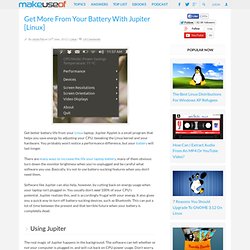
Jupiter Applet is a small program that helps you save energy by adjusting your CPU, tweaking the Linux kernel and your hardware. You probably won’t notice a performance difference, but your battery will last longer. There are many ways to increase the life your laptop battery, many of them obvious: turn down the monitor brightness when you’re unplugged and be careful what software you use. Basically, try not to use battery-sucking features when you don’t need them. Software like Jupiter can also help, however, by cutting back on energy usage when your laptop isn’t plugged in. Using Jupiter The real magic of Jupiter happens in the background. The tray icon, shown above as an Ubuntu applet, lets you manually configure Jupiter’s tweaks whenever you want. By default, “Maximum Performance” is used when your computer is plugged in and “Power Saving” is used when it isn’t.
You can also use the applet to quickly turn off power-sucking devices. Gnome Power Statistics. For all of you who are conscious about your power usage, you probably tend to check over your power settings often to make sure that you’re being as energy-efficient as possible. This is even more the case with laptop and netbook users, who benefit from tight, energy-saving power rules to extend the amount of time they can run on battery power. However, despite choosing the most energy-saving options, you’d probably like to see just how efficient those rules are. In Linux, this is very easy to do. About Power Statistics Gnome‘s Power Statistics application is a very easy-to-use way of getting hard numbers about your power usage.
Installation, If Necessary The Gnome desktop environment has always offered an application that displays a good number of power statistics, but it hasn’t always been installed by default. AC Supply When you first open the application, you’ll be greeted with any information about your AC adapter that Linux that pick up. Laptop Battery History Other Statistics Conclusion.