
Enable cross-origin resource sharing. Creating an Interactive Widget for iBooks without Dashcode – Part 2. A quick update to my post from last week.

Xcode became available as an App in the Mac App Store, and it no longer includes Dashcode by default. That means you need to download Dashcode separately, which requires an Apple Developer account. Apple gave the impression that Dashcode was included with iBooks Author, which doesn’t appear to be the case. If you don’t have Dashcode, don’t worry, you won’t need it for today. This is part 2 of my series on Interactive Widgets for iBooks Author. If you already have an existing HTML5 & JavaScript “applet”, it is the best solution to use, since you can easily adapt it to work as an interactive widget for iBooks. Main HTML file – You can have other script files, but one HTML file needs to be your main file. The Main HTML and Default.png are easy to make from scratch if you have some idea what you want, but the Info.plist is a little more complicated, so lets look at it first. Each key element is followed by an element named value type for the value. Creating Interactive Widgets for iBooks Author and the iPad – Part 1.
When Apple unveiled iBooks2 with support for advanced textbooks on the iPad, they also released iBooks Author to make the creation of such advanced textbooks easier.

One of the features of iBooks Author is the ability to embed interactive HTML5 & JavaScript widgets created with Dashcode. Unfortunately, there isn’t a lot of details on exactly how to do that. Since we just released our RemObjects SDK and Data Abstract for JavaScript, I was naturally curious if they could be used to build interactive widgets for iBooks2. This would be a really powerful feature – the ability to have live updated data displayed in an iBook. Since there wasn’t a whole lot of details I figured a lot of it out of the hardway. This is the first of four articles on creating interactive widgets for iBooks Author and the iPad’s iBooks2. First of all, what is Dashcode? A quick tour of the Dashcode IDE and what is in your project with a look at how this relates to embedding your widget in an iBook:
YouTube Clips in Ibooks. Super easy and you do not really need to know how to use dashcode - 1) open dashcode and select "custom" 2) under test and share select 10.4.0 backward-compatibility (under options) 3) name the widget Youtube embed 4) click "save to disk" 5) save the widget to your desktop 6) right click on your widget and select show package contents 7) open main.html with your text editor and replace all the html code in main.html with: <center><font color="#F7F7F7" size="4"><b>YouTube Video Embed Beta</B></font></center> save the file and close the widget folder - drag and drop into your iBooks HTML container, enjoy ;3 I have HTML5 CSS3 Canvas Javascript animations, complex calc javascript and a whole host of other things using this simple process of modifying a widgets base files.

Note: you can set the width/height in the info.hlist file/ Enjoy! Avk/iBooks-Social-Widget. Developing Dashboard Widgets. A brief introduction to building widgets for Apple’s Dashboard environment.
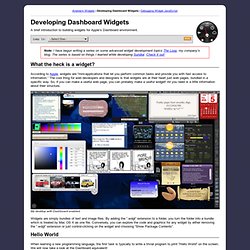
Jump to: Note: I have begun writing a series on some advanced widget development topics The Loop, my company’s blog. The series is based on things I learned while developing Sundial. Check it out! What the heck is a widget? According to Apple, widgets are “mini-applications that let you perform common tasks and provide you with fast access to information.” My desktop with Dashboard enabled Widgets are simply bundles of text and image files. Hello World When learning a new programming language, the first task is typically to write a trivial program to print “Hello World” on the screen.
Apple has been kind enough to post a “Hello World” widget on their Sample Dashboard Code page. HelloWorld.html For this example, Apple keeps it really simple! Note: You can name the file anything you want. Default.png This image is what the user will see when s/he loads the widget, but is also used in this case as our backdrop. Icon.png <? Creating html widget to access websites. iBooks Author: About HTML widget creation. iBooks Author supports HTML5 widgets (with the extension .wdgt).

To create an HTML widget for iBooks Author, use a text editor or web content creation app to create the following files: Main HTML file: This file is the main part of the widget. It can have any name you like, but its extension must be ".html". You can put CSS and JavaScript inside the main HTML file, or add .css and .js files to the widget bundle and set the main HTML file to load them. In these files, you can use any technique or trick that you would use when designing a webpage. Once you've created the three required files (and perhaps some optional files, such as CSS or JavaScript), assemble them into a widget bundle: Using the Finder, create a folder, and add the files to it.