
Personal / Pocket Size Survival Kit Reviews - EQUIPPED TO SURVIVE (tm) Personal / Pocket SizeSurvival Kit Reviews While a large and comprehensive survival kit can be a real boon to survivors, there can be times when you are unable to retrieve it from the wreckage or it is otherwise unavailable, such as when out for a short hike or a walk away from camp.

You are left with what you have on your person, the equipment in your pockets. You can enhance your survival capabilities by carrying a small, pocket size, personal survival kit, often referred to as a "PSK. " To qualify for our definition of "personal" or "pocket" size, the kit must be small enough to easily fit in a shirt or, perhaps, a coat pocket. A pouch style kit designed to be worn on a belt is too large, generally, to fit these parameters. For somewhat larger kits, we also review One-Person Pocket/Pouch Size Survival Kits - Larger than the mini-kits reviewed here, these fit in a pouch on your belt or a large cargo pocket.
By and large, you generally get what you pay for in these small kits. You're done! Dual Boot Your Pre-Installed Windows 7 Computer with XP. So you got your shiny new pre-installed Windows 7 computer over the holidays, but you want to have trusty XP standing by in a dual boot setup.
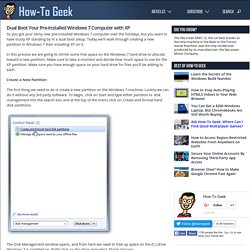
Today we’ll walk through creating a new partition in Windows 7 then installing XP on it. In this process we are going to shrink some free space on the Windows 7 hard drive to allocate toward a new partition. Make sure to take a moment and decide how much space to use for the XP partition. Make sure you have enough space on your hard drive for files you’ll be adding to each. Create a New Partition The first thing we need to do is create a new partition on the Windows 7 machine. The Disk Management window opens, and from here we need to free up space on the (C:) drive Windows 7 is installed on. A window pops up showing the drive is being queried for available space. Now enter the amount of space you want to shrink the volume.
After the process completes you’ll see the new Unallocated space. Install XP on the New Partition Create Boot Loader Conclusion. How 2-D Bar Codes Work" How to format USB drive and memory stick with NTFS. If you have ever tried to format a USB thumb drive or memory stick, you may have noticed that the only file system options you have are FAT and FAT32.
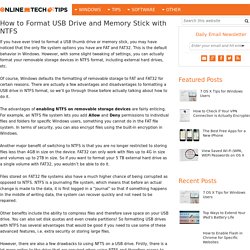
This is the default behavior in Windows. However, with some slight tweaking of settings, you can actually format your removable storage devices in NTFS format, including external hard drives, etc. Of course, Windows defaults the formatting of removable storage to FAT and FAT32 for certain reasons. There are actually a few advantages and disadvantages to formatting a USB drive in NTFS format, so we’ll go through those before actually talking about how to do it.
The advantages of enabling NTFS on removable storage devices are fairly enticing. Another major benefit of switching to NTFS is that you are no longer restricted to storing files less than 4GB in size on the device. Files stored on FAT32 file systems also have a much higher chance of being corrupted as opposed to NTFS. How to Format USB Drive with NTFS That’s about it. Origami Snowflake.