
25+ Best Free Tools To Customize Windows 7. Back in November last year, we listed over 55 free tweaking tools available for Windows 7.

Just like tweaking tools, there are tens of good utilities available to customize the default look and feel of Windows 7. In this article, we have covered the best free tools available to customize Windows 7. 1. Windows 7 Boot Updater: One of the advanced tools available for the latest version of Windows which makes the impossible possible. The 10 Coolest Windows Shortcuts You Never Knew About. Keyboard shortcuts are the essence of PC productivity.
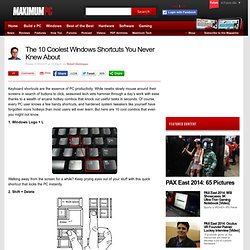
While newbs slowly mouse around their screens in search of buttons to click, seasoned tech vets hammer through a day’s work with ease thanks to a wealth of arcane hotkey combos that knock out useful tasks in seconds. Of course, every PC user knows a few handy shortcuts, and hardened system tweakers like yourself have forgotten more hotkeys than most users will ever learn. But here are 10 cool combos that even you might not know. 1. Windows Logo + L Walking away from the screen for a while? 2. How To Disable IPv6 In Windows 7 & Windows 8. You might have heard about IPv6, it is the latest address protocol that will eventually replace IPv4.

From Windows Vista onward it has been kept enabled by default, but it is also a fact that IPv6 is not yet common and many software, routers, modems, and other network equipment do not support it yet. So it may be a wise approach to disable it for now. We can also disable it by simply unchecking it from the Local Area Network Properties window, but this is not a permanent way to get rid of it. It gets enabled again once the system is restarted, so in order to permanently disable it, open the registry editor in Windows 7 & Vista by clicking Start, then type regedit and hit Enter.
Once it is launched, navigate to HKEY_LOCAL_MACHINE > SYSTEM > CurrentControlSet > services >TCPIP6 > Parameters key. Now right-click Parameters in the left sidebar and choose New > DWORD (32-bit) Value Here name it as DisabledComponents, set the value of DisabledComponents to 0 and click OK. Advertisement. 70 Fantastic Windows 7 Tips & Tricks For Better Functionality - Gnoted.com. Windows 7 is much better than the latest version of Windows Vista and it comes with a lot of new features.

Unfortunately, some of them aren’t so easy to figure out, so I created a list of the most important tips and tricks and a step-by-step guide that will help you apply all of these great tips and tricks. 1. PC Safeguard I rarely let anyone use my PC because I’m afraid he will mess it up, but it seems Microsoft has been thinking at me and came with a solution. The PC Safeguard doesn’t let anyone mess your PC settings, because after the user logs off, the configurations are reset back to normal.
To use PC Safeguard, go to Control Panel -> User Accounts and create a new account, then select “Set Up Pc Safeguard” and switch it on. 2. Fortunately, Windows 7 comes with a display calibration wizard that lets you set up the screen brightness properly, so you won’t have any problems viewing photos or text. 3. You can simply do this by pressing the Windows key then typing Gpedit.msc. 4. 5. 6. List of How to Windows 7. Welcome to RT Se7en Lite - Slipstream Service Pack,Integrate Updates,Integrate Drivers,Integrate LP,Remove Components,Enable or Disable features,Unattended Setup,Apply Tweaks,Add Icons,Wallpapers,Themes,Bootable USB or DVD.
Steadier State. 20 of the Best Windows 7 Articles of 2011. How-To Geek has provided all kinds of tips and tricks to help you get the most from your Windows 7 system.

The following are 20 of the best articles we’ve published about Windows 7 in 2011. How to Remove Win 7 Anti-Spyware 2011 (Fake Anti-Virus Infections) There are many fake antivirus, malware, and spyware applications out there that get a hold of your computer and hold it hostage until you pay money to have the virus, malware, or spyware removed.
The people who make these fake antivirus applications tell you that your PC is infected with fake viruses, when their application is actually the virus that prevents you from removing it. Win 7 Anti-Spyware 2011 is is one of these many fake antivirus applications that goes by many different names. Disable Driver Signing in Windows 7. Yesterday, this article told you how to disable driver signing in Windows 7 using the command line.
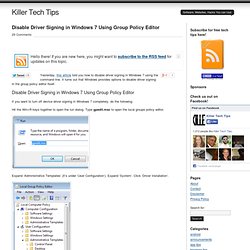
It turns out that Windows provides options to disable driver signing in the group policy editor itself. Disable Driver Signing in Windows 7 Using Group Policy Editor If you want to turn off device driver signing in Windows 7 completely, do the following. Hit the Win+R keys together to open the run dialog. Type gpedit.msc to open the local groups policy editor. Expand ‘Administrative Templates’ (it’s under ‘User Configuration’). In the right panel, double click on ‘Code Signing for Device Drivers’.
Choose ‘Enabled’ in the window that appears. Windows 7 How-To Articles, Tips, and Guides. How to Open God Mode on Windows 8, 7 & Vista. Why a 64-Bit Version of Windows 7 Might Be a Better Choice. For those of you that installed a 32-bit version of Windows, you have my condolences.

Otherwise, you really made the right choice based on a number of reasons. I think it’s important in this day and age to run any operating system on the highest possible bit width offered, but there’s a few reasons particular to Windows 7 that might make its x64 version more advantageous than simply running on 32-bit x86 microprocessor architecture. Not so long ago, people were making a transition from 16-bit to 32-bit. Today, there are still many people running 32-bit versions of their operating systems when 64-bit editions are available for fear that their old applications might not run on the newer version.
To those who know how processor registries work, this would be like worrying whether you can put the same amount of clothes in your new washing machine with a 9 kg capacity as you did with the older one that had a 7 kg capacity. Processors work much like onions, with several layers of registers. 30 Windows 7 Hotkeys: Ultimate Guide. Apart from so many new features in Windows 7, Microsoft has also added new hotkeys to give individuals better control over their operating system.
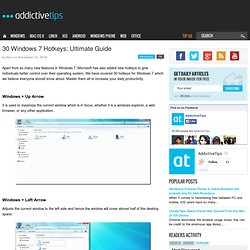
We have covered 30 hotkeys for Windows 7 which we believe everyone should know about. Master them all to increase your daily productivity.