
Colleen Lindsay
Having different link colors on one page. Do you want to have a different color links on different sections of your website?

If your answer is yes then you have come to the right tutorial. Often websites have different color backgrounds on different sections of their website, for example content section of your website might have a white background, in contrast footer section might have a darker background color. Problem arises when you have links on the footer, default link-color is blue therefore it might not be very visible on the darker background. Luckily there is a way to solve this problem with CSS which we are going to do next. 1. You need to put the above code betweentags in your page’s source code like this: 2.
As you see from the example, red link on yellow background is very visible, however the link on gray background is not-so-visible-and-readable. 3. Add the red lines to your CSS, as shown above. 4. We are done, view your page and voila the second link became white! How to merge pdf files in OSX. Combining pdf documents on an Apple computer is easy.

The OSX built in preview application has the ability to merge two different pdf documents together and even move pdf pages within a pdf file. For all versions of OS X prior to Mountain Lion (that is Leopard, Snow Leopard, Lion) just follow the instructions below. Things have changed a little with Mountain Lion so I’ve made a new post on merging two pdfs in Mountain Lion, and there’s another slight change with OSX 10.9 Mavericks. There are lots of websites offering to sell software to merge PDF files, but you don’t need a third party program to do it – it’s built right in to OS X for free.
OS X has a bilt in free application called ‘Preview’ that opens automatically whenever you click on a pdf file. To join two or more pdf files together using Preview simply open the pdf file in preview, open the thumbnail view (Shift-⌘-D), and then drag a second pdf ON TOP OF an existing page thumbnail. Here’s how to do it step by step. 1. 2. 3. Links : Link Within a Page. Pure CSS Vertical Menu. Today we are going to build the second most common menu navigation, the vertical navigation menu.

Here we are going to be using only pure CSS and un-ordered lists to create our menu with three sub-levels. This version of the vertical navigation menu will work in IE5 / IE6 (with CSS pseudo hover fix), IE7, IE8, IE9, as well as FF, Safari and Chrome. To start lets create our menus container block and give it an id of “navigation”: Next we will add our first level menu items: How to Make a Long Distance Relationship Work: 18 steps (with pictures) Steps Part 1 Preserving Normality When You Can <img alt="Image titled Make a Long Distance Relationship Work Step 1" src=" width="728" height="546" class="whcdn" onload="WH.performance.clearMarks('image1_rendered'); WH.performance.mark('image1_rendered');">1Stay in contact.
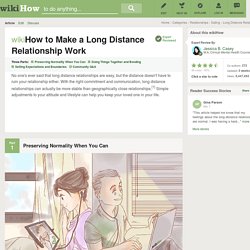
Since you won't be seeing each other in person, it's important to establish and maintain an emotional connection as often as you can. These don't always have to be long, in-depth conversations.[2] Frequent communication, no matter how minor, will show that you care enough to put in the time and effort into the relationship[3] and it’s easier to keep up to date with each other’s lives.[4] If you allow large (days at a time) gaps to pass by, your everyday experiences fade into the background, and you will have to start from scratch every time you speak.
Part 2 Doing Things Together and Bonding Part 3 Setting Expectations and Boundaries. 100 Things For LDR Couples To Do From A Distance! People in long distance relationships can have a hard time staying connected, because couples are limited in what they can do together.

Many are limited to phone calls, emails, instant messaging, and texting which can become a bit humdrum over time, if you ask me. It is important to keep things interesting. Perfect Full Page Background Image. Learn Development at Frontend Masters This post was originally published on August 21, 2009 and is now updated as it has been entirely revised.

Both original methods are removed and now replaced by four new methods. The goal here is a background image on a website that covers the entire browser window at all times. Let’s put some specifics on it: Fills entire page with image, no white spaceScales image as neededRetains image proportions (aspect ratio)Image is centered on pageDoes not cause scrollbarsAs cross-browser compatible as possibleIsn’t some fancy shenanigans like Flash Image above credited to this site. Awesome, Easy, Progressive CSS3 Way. Design floating pages using large fixed background images. BACKGROUND IMAGES ARE an integral element of the web design process. They provide a one-step process to creating immediate and beautiful graphics. Typically, they are used as repeating backgrounds to compensate for screen resolutions, header and background graphics in blogs and the basis for buttons, tabs and boxes.
Fade Images in Photoshop Using Layer Masks Article. This article was written in 2011 and remains one of our most popular posts.

Helpful. Pearltrees videos. Getting started.