
Vicfg-cfgbackup - Backup & Restore ESXi host configurations. Vicfg-cfgbackup - back up and restore ESXi host configurations vicfg-cfgbackup <conn_options> [--force | --help | --load <backupfile> | --reset | --save <backupfile>] The vicfg-cfgbackup command backs up ESXi configuration data and restores them later.

You can back up the host configuration, restore the configuration to the host, force the restore of the configuration, and reset the host to factory settings. Back up ESXi host configuration before you change the configuration or upgrade the ESXi image. The vSphere Upgrade Guide discusses backing up and restoring the ESXi configuration in some detail. Important: This command is supported for ESXi hosts but not for ESX hosts. conn_options Specifies the target server and authentication information if required.
--force | -f Forces the restore of the configuration. --help Prints a help message for each command-specific and each connection option. --load | -l <backupfile> Restores configuration from <backupfile> onto the host. --save | -s <backupfile> Updating ESXi 5 - Single use esxcli How To. This is a modernized version of the "Single use vihostupdate How To for ESXi 4.x, which was a modernized version of the "Single use ESXUPDATE How To for ESX 4" post I wrote a long time ago.

With vSphere 5, vihostupdate and esxupdate are not applicable for ESXi 5. We instead will need to use the esxcli command to apply the updates to our ESXi 5 hosts. 01: Make sure you have the vMA 5.0 or the vCLI installed and configured or that you have ESXi Shell access on the ESXi 5 host. 02: Download the patch bundle directly from VMware Support. This download will be .zip file. 03: Upload the .zip file to a datastore that is accessible on the ESXi host you wish to update. Note: In the examples below, the syntax is specific for the vMA. 04: Obtain local console access to the vMA and login with the vi-admin account. 05. Esxcli --server=10.10.10.10 --username=root software sources vib get -d /vmfs/volumes/datastore1/ESXi500-201109001.zip | grep "Maintenance Mode Required: True" 06. 07. Using the partedUtil command line utility on ESX and ESXi. Creating persistent scratch location for ESXi. Creating RDMs on SATA drives. [Home] [Forum] ESXi provides the ability to use raw device mapping (RDM) as a method to provide a VM with direct access to a LUN on a Fibre CHannel or iSCSI storage device.
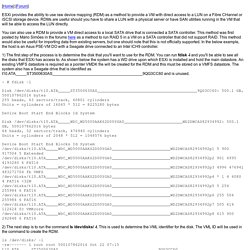
RDMs are useful should you have to share a LUN with a physical server or have SAN utilities running in the VM that will be able to access the LUN directly. You can also use a RDM to provide a VM direct access to a local SATA drive that is connected a SATA controller. This method was first posted by Mário Simões in the forums here as a method to run RAID 5 in a VM on a SATA controller that did not support RAID. This method would also be useful for importing data from existing servers, but one should note that this is not officially supported. 1) The first step of the process is to determine the disk that you'll want to use for the RDM.
. ~ # fdisk -l Device Boot Start End Blocks Id System 2) The next step is to run the command ls /dev/disks/ -l. 3) To create the RDM you'll use the command vmkfstools.