
Windows Live Writer. Windows Live Writer (WLW) by Microsoft is an application for composing and managing blog posts.

You can write your posts offline and publish them later. There are many helpful tools in WLW that make creating popular posts easier: WYSIWIG using the theme of your blogImage manipulationSpell checkEasy HTML tablesInclude maps from Virtual EarthAutomatically syncs changes before re-editing posts As of version Beta 2, WLW supports new WordPress XML-RPC features: Creating/editing/deleting pages Custom dates (including future posts)Specifying a post/page slugImproved category managementSetting post/page passwordsAuthor managementCustom WordPress sidebar for easy navigation to your blog, dashboard, and stats Don’t see a feature you want? Setup Windows Live Writer 2011 Time required: 8-12 minutes.
Webhooks. Webhooks lets you easily develop push notifications.

This push notification is simply a HTTP POST, that is triggered by some action. This is a feature aimed for developers who want to get data from actions (like when a new comment is submitted) that occur on a blog. Only admin level users can add or manage webhooks. You can now find this under Settings -> Webhooks in the dashboard. Add a Webhook You will be able to add a webhook by pressing the Add webhook button and filling out a simple form. You can choose an action and the fields associated with that action to be posted to the URL.
You can edit, delete and activate or deactivate the webhook using the options in the webhook row. ↑ Table of Contents ↑ Possible Actions/Fields What would I use something like this for? Let’s look at a hypothetical example; say I want to get a text message every time a new comment is submitted to my site. Using WordPress.com through the Twitter API. If you’re a software developer interested in talking to WordPress.com using the Twitter protocol–you’ve found the right page.
Third Party Applications. WordPress.com allows you to connect with third-party applications that extend your WordPress.com site in new and cool ways.
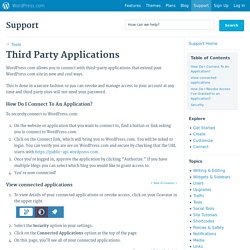
This is done in a secure fashion so you can revoke and manage access to your account at any time and third party sites will not need your password. How Do I Connect To An Application? Text Messaging. Note: The Text Messaging upgrade has been discontinued, but we do have a new two step authentication system available separately.

With WordPress.com Text Messaging, your blog comes with you wherever you are. By activating your phone number with our Text Messaging service you can receive notifications via SMS text when various changes happen on your blog. With the purchase of the Text Messaging upgrade you can add a two-step login, receive and moderate comments, create posts and more via text! Activating the Service To sign up for the service, visit the ‘Text Messaging’ link in the ‘Settings’ tab while in the dashboard of your blog.
Once the activation is successful, the settings page will load the notification options for your blog. . ↑ Table of Contents ↑ Service Commands To stop using the service at any time, send STOP to 77377. On Your Mobile. Moving a Blog. Moving Between WordPress.com Blogs You can change your current blog URL to another WordPress.com URL with the Changing a Blog Address tool if the URL is still available.
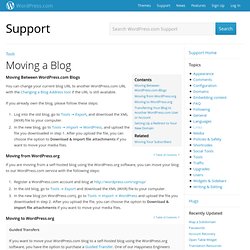
If you already own the blog, please follow these steps: Log into the old blog, go to Tools → Export, and download the XML (WXR) file to your computer.In the new blog, go to Tools → Import → WordPress, and upload the file you downloaded in step 1. Import. Importing Content from Another Platform or WordPress Blog We make it easy for you to import your blog content from a variety of other blogging platforms, including Blogger, Israblog, LiveJournal, Movable Type, Posterous, Storylane, Tumblr, Typepad, WordPress, Xanga, and Yahoo!

Export. Export Your Content to Another Blog or Platform It’s your content; you can do whatever you like with it.

Go to Tools -> Export in your WordPress.com dashboard to download an XML file of your blog’s content. This format, which we call WordPress eXtended RSS or WXR, will contain your posts, pages, comments, categories, and tags. ↑ Table of Contents ↑ Manual export or Guided Transfer On the export screen you’ll get a choice between exporting your content yourself or having our of our Happiness Engineers help you through a Guided Transfer.
Apps for WordPress.com. Blogging at WordPress.com is great, and these applications make it even better by giving you more ways to post and follow your favorite blogs.
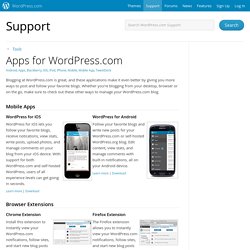
Whether you’re blogging from your desktop, browser or on the go, make sure to check out these other ways to manage your WordPress.com blog. Mobile Apps WordPress for iOS WordPress for iOS lets you follow your favorite blogs, receive notications, view stats, write posts, upload photos, and manage comments on your blog from your iOS device. With support for both WordPress.com and self-hosted WordPress, users of all experience levels can get going in seconds. Learn more | Download. Admin Bar. Contents Related You may have noticed a gray bar that appears at the top of your pages when logged into your WordPress.com account.

This gray bar is called the Admin Bar and it is an easy-to-access toolbar with shortcuts to many of the WordPress.com features you already know and love. The WordPress Logo The drop-down menu that appears when you hover over the WordPress logo is a quick way to access many of social features available on WordPress.com. For example, you can access the following features in this menu: Blog Menu The Blog Menu, located next to the WordPress logo on the left-hand side of your Admin Bar, has two different appearances.