
The Ultimate Guide to Designing with Black. Whether you're a student designer learning the tricks of the trade, a web designer looking to delve into the world of print or an accomplished designer looking to broaden their knowledge, there's always something to be learnt when it comes to designing for print.
One of those areas is how to approach using blacks in your design and knowing how it will end up when it comes back from the printers. Read on for a few tips and techniques on how to create artwork containing black. Black is just black, right? In the world of web where you're designing for the screen black is black, zero amounts of Red Green and Blue. There are no hidden gremlins to catch you out (apart from those percentages of people with the brightness and contrast levels completely out of sync on their monitors!) Selecting Black in Photoshop The default black setting in Photoshop is not ideal for print. What you didn't expect is that it would come back looking like this on all 1000 copies of your printed designs! How to setup an Embossed Business Card in Illustrator. This tutorial covers how to setup an embossed business card properly in illustrator for print.

The very first thing you need to do is create our art board. In this case we are embossing a business card, so our art board is 3.5" x 2" plus an 1/8" for bleed. Make sure your raster effects resolution is set to at least 300dpi and the colour mode is in CMYK. Once your file has opened, we are ready to start laying out our artwork. A good second step is to save our file. Now you are ready to start setting up your artwork.
Once we’ve got the front side laid out we need to indicate what is going to be embossed. Now we need to take this and create a separate layer for it. Now that we have the front setup we'll bring in the artwork for the back of the card. Now we want to save our files for print. For the embossing layer, we will show only the layers for embossing. Create a Print Ready Business Card Design in Illustrator. Illustrator has fantastic tools available for creating small print designs such as business cards.
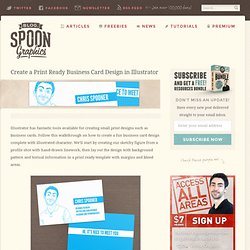
Follow this walkthrough on how to create a fun business card design complete with illustrated character. We’ll start by creating our sketchy figure from a profile shot with hand-drawn linework, then lay out the design with background pattern and textual information in a print ready template with margins and bleed areas. The design we’ll be building is of traditional business card proportions, making use of both sides of the card. Just two colours are used in the design – Cyan and black – Cyan being the blue used throughout the design, and black being used at a very low percentage as the grey grid background.
The use of single inks for each colour (C for Cyan and K for black from the CMYK model) will ensure a crisp end print. Let’s start with the sketchy linework of the illustrated character. Double click the Pencil tool to alter the settings. Create a new document in Illustrator. InDesign Files - How to Set Up Business Card Layout Design for Press. This is a simple exercise to demonstrate how to produce press-ready Adobe InDesign files by creating a basic business card layout design and preparing it for press.

We'll create both spot color and 4 color process versions. The logo I'm using for this exercise is one that I put together in Illustrator (see the Create Vector Logo exercise) to demonstrate how to create both spot color and four color process vector graphic files. The purpose of this website is to demonstrate essential skills which are required for your first graphic design job - I'm going to assume that you already have a some background training and a good eye for design. If you'd like to know about the basics of how to design and design theory, there are some excellent websites and books at your disposal.
Creating Spot Color Documents - Business Card Layout Design The principles of setting up a layout document correctly are universal (whether you create InDesign files or Quark files). Import a Logo or Vector Graphic.