
How to create iCal events from anywhere. While I rely on iCal to help me track meetings and to dos, I’ve always found the actual process of adding new events and to dos much more complex than it need be. Typically I’ll be in some other application when I realize I need to create a new to do or event, so that entails launching iCal, finding the date on which I want to add the event, double-clicking to create the new event, then (thanks, 10.5) pressing Command-E to bring up the edit box. How to view the contents of a Zip file in Quick Look with Zip Qu. Comment coller en préservant le style de destination sous Mac. Si - comme moi - il vous est fréquemment arrivé de vous énerver lors d'un copier / coller textuel en constatant que votre extrait collé ne correspondait pas au style du document cible, alors cette astuce de Tuaw est pour vous.

Mac Os X, en effet, permet dans les préférences systèmes "clavier et souris", onglet raccourcis clavier, de configurer finement vos doublages clavier. Rendez-vous en bas de la liste des raccourcis clavier, sur l'élément "Raccourcis clavier de l'application>toutes les applications". Créez un nouveau raccourci (en cliquant sur le signe +) et désignez le avec cette expression. Coller et appliquer le style actuel Affectez lui le raccourci clavier classique du collage (cmd + v). How to weak your way to a better Finder. SExpand It's disappointing that Snow Leopard doesn't promise many major new Finder features, but with the right tweaks and plug-ins, you can make browsing files on your Mac significantly better.P Image by nono34.P Short of purchasing a license for the excellent Path Finder, you can customize Leopard's built-in file manager with just a little effort.

Here are a few of my favorite Finder tweaks. How to clean up and revive your sluggish Mac. How to organize your files in Mac. Most modern computer users might find it difficult to imagine living in the time when the size of computer hard disks was within the range of a few megabytes.

But users from the early days of computers knew the storage space limitation so well that they learned to be very selective in choosing which files to keep and which files to throw away. Thanks to the luxury of virtually unlimited storage space that we have today, computer users have developed the “save everything now, think about them later” attitude. How to make symbols on a Mac. Steps Method 1 of 5: Using the Option Key Codes 1Hold down the ⌥ Option key.
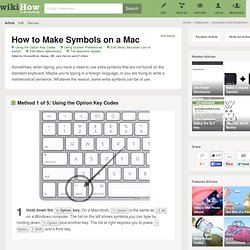
On a Macintosh, ⌥ Option is the same as ⎇ Alt on a Windows computer. The list on the left shows symbols you can type by holding down ⌥ Option plus another key. The list at right requires you to press ⌥ Option, ⇧ Shift, and a third key. Method 2 of 5: Using System Preferences 1Go to System Preferences. 2Select International. 11Close the Character Palette. 1Click "Edit" in the Menu Bar2Click "Special Characters... " at the bottom of the Edit menu. 3A new Character Palette will appear on screen. 4Select a category from the menu on the left. 5From the list on the right, click on a symbol. 6Close the Character Palette. 20 websites every Apple fan must bookmark.
MacWorld fever has come and gone.

It has been a roller-coaster ride for most Mac users, I reckon. HRH Steve Jobs was absent from the very last Apple keynote at MacWorld. Phil kind of disappointed me with a poor performance and product release during the keynote. Maybe I expected too much from it all. Still, the internet is always buzzing with announcements about everything Mac. News and reviews The Unofficial Apple Weblog. Secrets. Petits trucs et astuces Mac OS X.
How to create arbitrary keyboard shortcuts for bookmarklets. How to hide your hard disk from the desktop. If you want to hide the Hard Disk icon from your desktop so that you can maintain a clean look, follow this Tech-Recipe.

These directions are accurate for all modern versions of OS X including 10.7 Lion. 1. Open Finder. 2. Go to Preferences. 3. 4. 5. Update 2/28/2012 – This continues to work for OS X Lion as well as this screen shot shows: Share this article If this article helped you, please THANK the author by sharing. The Conversation Follow the reactions below and share your own thoughts. Pressing F5 in a text field. More Mac 101, TUAW tips for new and returning Mac users.

If you're typing in a text field (in Safari, TextEdit, or most any Mac OS X app), you can press F5 while your cursor rests in a particular word to see a list of words that begin with the letters after the last space. Holding down Option and Pressing Escape works, too. So, for example, if you type create, you get a list of words including create, created, and creates. If there are a lot of words in the list, it only shows the first 100 results, sorted alphabetically. The results come from Mac OS X's built-in dictionary. How to organize Spotlight results. Welcome to another entry in our series for new Mac users: Mac 101.

This installment brings us to the preference panel of Spotlight, OS X's integrated search that makes finding that needle in your hard drive's haystack as easy as pie (clearly, it doesn't protect against mixed metaphors). You're familiar with the way Spotlight returns results, but did you know that you can change the order in which those results are shown? Folder shortcuts in the Finder. Another quick tip in our Mac 101 series for beginners: Some special folders on your computer have keyboard shortcuts that you can press to instantly navigate to that folder when using the Finder.

For example, to open your Applications folder, click on your desktop and use the shift (???) And command (???) Keys to type ??? Mac tips via Google+Lifehacker. How to quick look inside folders. How to display the date on the menubar.