
10 ways to reference Excel workbooks and sheets using VBA. Excel offers myriad options for referring to workbooks and sheets in your VBA code.
See which methods make sense in which situations. Excel offers myriad options for referring to workbooks and sheets in your VBA code. See which methods make sense in which situations. Referencing workbooks and sheets programmatically generates a lot of confusion because there are so many possibilities. No method is superior; they all have their place. Note: This article is also available as a PDF download. 1: Reference the active workbook VBA's ActiveWorkbook property refers to the workbook with the focus.
For example, after passing data to an active workbook, you'd probably want to save that workbook, which is a simple task for the ActiveWorkbook property. Sub CloseActiveWBNoSave() 'Close the active workbook without saving. ActiveWorkbook.Close False End Sub Sub CloseActiveWBWithSave() 'Close the active workbook and save. VBA AutoFilters. How to use AutoFilters in Excel VBA Macros. Got any Excel Questions?

Free Excel Help See Also: AutoFilters via User Interface | Display Excel AutoFilter Criteria VBA & AutoFilters AutoFilter provides us with a MUCH faster alternative to loops of all kinds. In the majority of cases it's faster and more efficient to use one of Excel's built in features as apposed to re-inventing the wheel with VBA code. Ok, the first thing we need to know is how to apply AutoFilter to a range. Sub CheckForAutoFilters() If ActiveSheet.AutoFilterMode = True Then MsgBox "They are visible" Else MsgBox "They are not visible" End If End Sub From the code above we will know if AutoFilters are visible, but not necessarily in Filter mode (more on that soon).
Sub CheckForAutoFilters2() With ActiveSheet If .AutoFilterMode = True And .FilterMode = True Then MsgBox "They are visible and in use" ElseIf .AutoFilterMode = True Then MsgBox "They are visible but not in use" Else MsgBox "They are not visible or in use" End If End With End Sub Special! Excel AutoFilter VBA. Examples of AutoFilter VBA programming, for use with worksheet AutoFilters (only one allowed per worksheet).
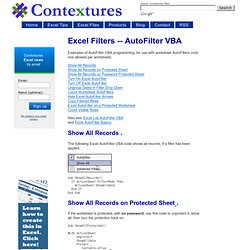
Show All Records Show All Records on Protected Sheet Show All Records on Password Protected Sheet Turn On Excel AutoFilter Turn Off Excel AutoFilter Ungroup Dates in Filter Drop Down Count Worksheet AutoFilters Hide Excel AutoFilter Arrows Copy Filtered Rows Excel AutoFilter on a Protected Worksheet Count Visible Rows Also see: Excel List AutoFilter VBA and Excel AutoFilter Basics Show All Records The following Excel AutoFilter VBA code shows all records, if a filter has been applied.
Sub ShowAllRecords() If ActiveSheet.FilterMode Then ActiveSheet.ShowAllData End If End Sub Show All Records on Protected Sheet If the worksheet is protected, with no password, use this code to unprotect it, show all, then turn the protection back on. In other cases, you might want to hide the arrows on specific columns, and leave all the other arrows visible. Criteria for VBA AutoFilters. How to use AutoFilter Criteria in Excel VBA. Got any Excel Questions?

Free Excel Help. Excel AutoFilters in VBA Using Dates. Filter by Dates in Excel VBA. Got any Excel Questions?

Free Excel Help See Also: AutoFilters via User Interface | Display Excel AutoFilter Criteria | AutoFilters in Excel VBA | AutoFilters Excel VBA Criteria Using dates in AutoFilter can be tricky if not using the US date format. When/if you record a macro applying an AutoFilter to a date, you get code like: Determining The Data Type Of A Cell. Category: VBA Functions | [Item URL] In some situations you may need to determine the type of data in a cell.

Excel provides a number of built-in functions that can help. These include ISTEXT, ISLOGICAL, and ISERROR. In addition, VBA includes functions such as IsEmpty, IsDate, and IsNumeric. The CellType function (VBA code is listed below) accepts a range argument and returns a string that describes the data type of the upper left cell in the range.
Understanding Object Parents. Category: General VBA | [Item URL] When working in VBA, it's important to understand the object model for the application you're using.

More specifically, a good knowledge of how various objects relate to each other can often simplify your coding. Excel's object model is a hierarchy - objects are contained in other objects. At the top of the hierarchy is the application objects (Excel itself). Excel contains other objects, and these objects contain other objects, and so on. Application Object (Excel) Workbook Object Worksheet Object Range Object In the lingo of object-oriented programming, a Range object's parent is the Worksheet object that contains it. The SheetName Function How can this information be put to use? Function SheetName(ref) As String SheetName = ref.Parent.Name End Function The WorkbookName Function The next function, WorkbookName, returns the name of the workbook.