
Robocopy. Robust File and Folder Copy.
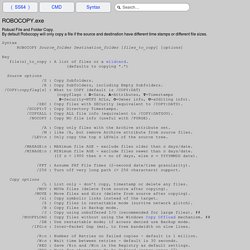
By default Robocopy will only copy a file if the source and destination have different time stamps or different file sizes. Syntax ROBOCOPY Source_folder Destination_folder [files_to_copy] [options] Key file(s)_to_copy : A list of files or a wildcard. (defaults to copying *.*) Source options /S : Copy Subfolders. /E : Copy Subfolders, including Empty Subfolders.
/COPY:copyflag[s] : What to COPY (default is /COPY:DAT) (copyflags : D=Data, A=Attributes, T=Timestamps S=Security=NTFS ACLs, O=Owner info, U=aUditing info) . # = New Option in Windows 7 and Windows 2008 R2 ## = New Option in Windows 8 and Windows 10 In Windows XP, Robocopy was only available via the Resource Kit but is a standard/built in command since Windows 7. Robocopy EXIT CODES File Attributes [RASHCNETO] R – Read only A – Archive S – System H – Hidden C – Compressed N – Not content indexed E – Encrypted T – Temporary O - Offline /REG Writes to the registry at HKCU\Software\Microsoft\ResKit\Robocopy. Robocopy and a Few Examples. A few of my customers were complaining that there is not enough documentation on robocopy usage and examples.

I am trying to document some of the common scenarios where robocopy can be useful. ROBOCOPY <source><destination> [file…] [options] <source> Source Directory (local or network path) <destination> Destination Directory (local or network path) and [file…] Specifies the file or files to be copied. **Skip to the end of this document for more information on Robocopy Options and Switches . Examples of Microsoft's Robocopy Syntax #1 To copy contents of C:\UserFolder to C:\FolderBackup: Robocopy C:\UserFolder C:\FolderBackup This is the simplest usage for Robocopy To copy all contents including empty directories of SourceFolder to DestinationFolder: Robocopy C:\SourceDir C:\DestDir /E List only files larger than 32 MBytes(33553332 bytes) in size.
Robocopy.exe c:\sourceFolder d:\targetfolder /min:33553332 /l List only files less than 32 MBytes(33553332 bytes) in size. Or @echo off. BCD Boot Options Reference (Windows Drivers) Boot entry parameters, or boot parameters, are optional, system-specific settings that represent configuration options.

You can add boot parameters to a boot entry for an operating system. This section describes the boot options for Windows 8.1, Windows 8, Windows 7, and Windows Vista, that are related to developing, testing, and debugging drivers on computers with x86-based and x64-based processors. You can add these parameters to the boot entries for Windows operating systems. Note Before setting BCDEdit options you might need to disable or suspend BitLocker and Secure Boot on the computer. Mapping Boot.ini Options to BCDEdit Options and Elements The following table provides a mapping from the boot options used in operating systems prior to Windows Vista (in Boot.ini), to the BCDEdit options and the BCD elements used in Windows Vista and later versions of Windows. Microsoft Windows Server 2008 BCD code configure BCDEdit. Boot.ini really was the last of Microsoft's .ini files.

In Windows Server 2008, Boot.ini is superseded by BCD (Boot configuration data). Boot Configuration Data is a wonderfully descriptive expression, more importantly, it gives you control of what should happen when a Windows Server 2008 computer starts. The BCD editor is not notepad, but a command-line program called BCDEDIT. Topics for Windows Server 2008 - BCD and BCDEdit Difficulty Getting Started with BCDEdit At the beginning I found it frustrating when I tried to set, or even change boot settings with BCDEdit.
Scenario: We want to inspect, and then change the Windows Server 2008's boot options. Example 1 - Plain bcdedit Trap: Before launching the command prompt, right-click CMD and select, RunAs, administrator. Get Active Directory users using WMI - Scripting / VBScript for Windows. Categories / Scripting / VBScript for Windows Use the script below to get a specific user object from Active Directory using WMI (Windows Management Instrumentation).

The script queries Active Directory using the LDAP protocol and WMI and prints out the first name and surname of the user if the specified user is in the directory. Option Explicit Dim strComputer, strUsername, objWMI, colUsers, objUser strComputer = ". " Set objWMI = GetObject("winmgmts:\\" & strComputer & "\root\directory\LDAP") strUsername = InputBox("Please type the user name") Set colUsers = objWMI.ExecQuery("SELECT * FROM ds_user where ds_sAMAccountName = '" & strUsername & "'") If colUsers.Count > 0 Then For Each objUser in colUsers WScript.Echo "First Name: " & objUser.ds_givenName WScript.Echo "Last Name: " & objUser.ds_sn Next Else WScript.Echo "No users found!
" System Error Codes (0-499) Note The information on this page is intended to be used by programmers so that the software they write can better deal with errors.

If you are an end-user that is experiencing difficulty with an application you are installing or running, contact customer support for the software that is displaying the error message. To obtain support for a Microsoft product, go to The System Error Codes are very broad. Each one can occur in one of many hundreds of locations in the system. 0 (0x0) The operation completed successfully. 1 (0x1) Incorrect function.